

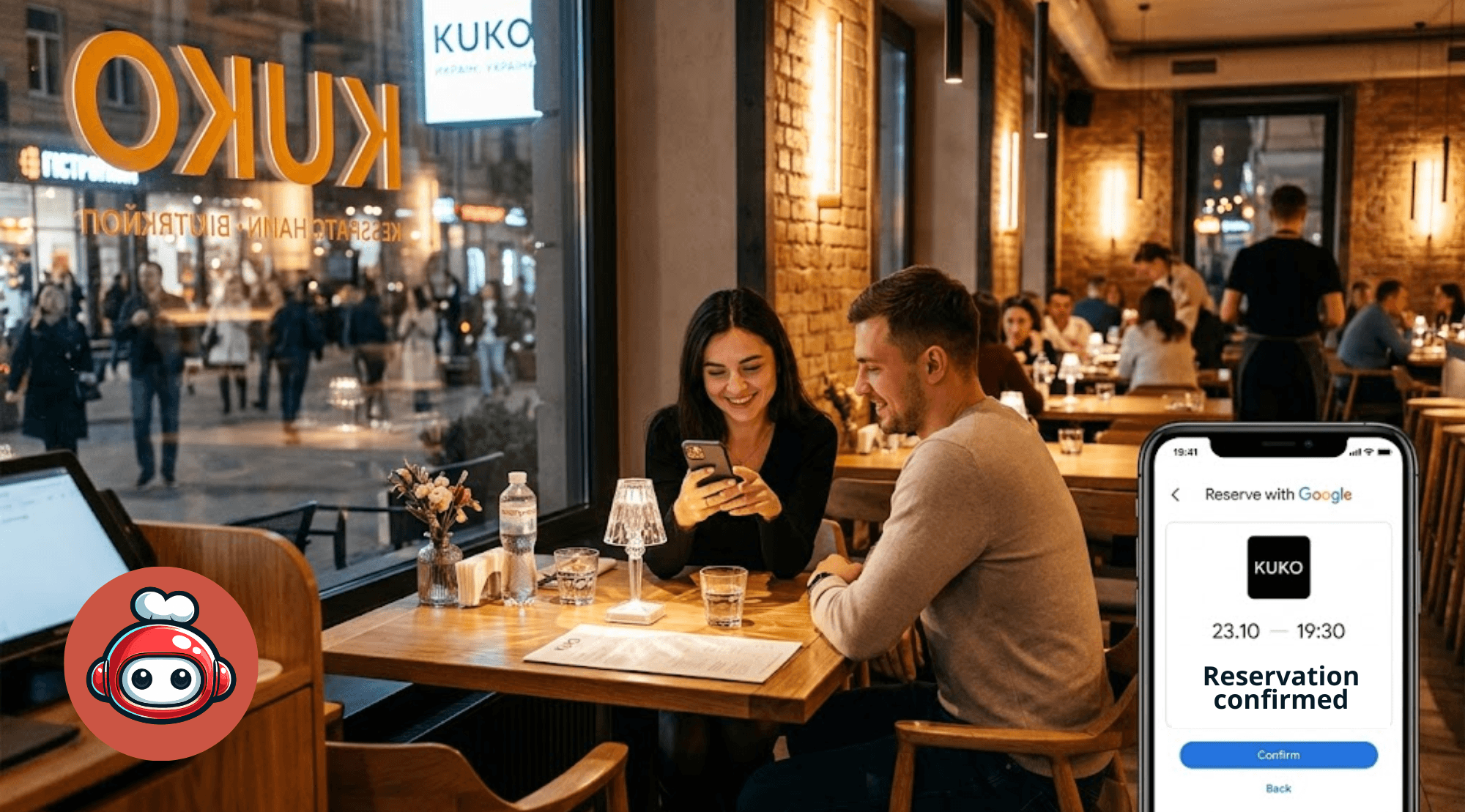
When a customer searches "Italian restaurant downtown" and finds your Google Maps profile, they can call — or tap "Reserve a table." Restaurants with that button get 25–40% more reservations than those with only a phone number.
The feature is Reserve with Google, available from search results and Google Maps. This article shows how to launch it for your restaurant — step by step, in one business day.
What is Reserve with Google?
Reserve with Google lets customers book a table directly from:
- Google search results ("restaurant + [area]")
- Your Google Maps business profile
- The Knowledge Panel on the right side of results
Instead of finding a phone number, calling, and waiting, the customer taps "Reserve," picks date, time, and party size — done. Confirmation arrives on their phone automatically.
Why it matters for SEO and sales
Google highlights restaurants with active Reserve with Google in local results. A profile with a booking button is more visible and clickable. That directly affects Google Maps position.
For you as owner it means:
- Fewer phone calls interrupting the kitchen
- Reservations 24/7, even when closed
- Automatic guest reminders (fewer no-shows)
- Full reservation history in one place
How Reserve with Google works — technical basics
Google does not take reservations directly. It acts as a bridge — linking your Google Maps profile to a reservation system (booking system). When the customer taps "Reserve," they see your booking system's form integrated into Google.
Your restaurant must connect to a Google-approved booking system — such as RESTOBOT.
How to launch Reserve with Google via RESTOBOT
Prerequisites
Before you start, ensure you have:
- A verified Google Business Profile
- A RESTOBOT account
- Access to the email linked to Google Business Profile
Step 1: Enable reservations in RESTOBOT
Log in to RESTOBOT and open Reservations. Configure:
- Opening hours (each day separately)
- Available tables (seat count)
- Min and max party size per booking
- Buffer between bookings (e.g. 15 minutes to reset the table)
- Default reservation duration (e.g. 90 minutes)
Step 2: Connect RESTOBOT to Google Business Profile
In RESTOBOT settings find "Reserve with Google." Click "Connect with Google" and sign in with the account tied to your Google Business Profile.
RESTOBOT features a Reserve with Google integration — connecting is automatic with no extra applications or long verification waits.
Step 3: Test the booking flow
After connecting, search your restaurant on Google Maps. The "Reserve a table" button should appear within 24–48 hours.
Before going public, make a test booking:
- Find the restaurant on Google Maps
- Tap "Reserve a table"
- Pick date and time
- Confirm email arrived
- Confirm the booking appears in RESTOBOT
Reserve with Google + Google reviews — synergy
Reserve with Google is also a chance to collect reviews. After the visit RESTOBOT sends a rating request — same as after Telegram or website orders.
| Contact channel | When review request is sent |
|---|---|
| Website order | 20 min after estimated delivery |
| Telegram order | 20 min after estimated delivery |
| Reservation (Reserve with Google) | 2 hours after reservation time |
| Table QR code | On guest request |
Every Google reservation can automatically become a new Google review — with no staff action.
How Reserve with Google affects Google Maps visibility
Google rewards restaurants with an active Reserve with Google integration. In practice:
- Higher ranking for reservation-intent queries ("restaurant for evening", "dinner booking downtown")
- Larger knowledge panel — profiles with booking take more screen space
- Rich snippets — in some SERPs the booking form appears directly in search
How much does Reserve with Google via RESTOBOT cost?
Reserve with Google as a Google feature is free. You only pay RESTOBOT subscription, which includes the reservations module.
Google charges no commission on bookings — unlike aggregators such as OpenTable, which charge $1–9 per seated guest.
Summary
Reserve with Google is one of the most important features a restaurant can launch in 2026. Setup via RESTOBOT takes one day, needs no technical skills, and immediately improves Google Maps visibility and booking volume.
Combined with automatic review collection and Telegram ordering, Reserve with Google becomes part of a system that runs 24/7 — without staff.
Launch Google reservations: www.restobot.pro — first 30 days free.