


You can embed Google reviews on your site in minutes with a no-code widget that connects to your Google Business Profile and gives you a paste-in snippet. If you need live syncing, filtering or AI review summaries built into your own templates, the Maps JavaScript API lets a developer pull reviews with fetchFields() and display author attribution directly. The choice comes down to speed versus control.
***
TL;DR:
>
- Free widget plans may cap displayed reviews, add branding, or limit styling, and some refresh only daily, so test updates before publishing. - A manually shared Google Maps review needs no account or code, but it stays static and must be replaced by hand when details change. - Places API displays must retain each author’s name, profile link, photo, and publication time, while AI summaries require Google’s disclosure and attribution. - Run API requests on your server and cache results on a schedule, because per page calls expose keys, consume quota, and can slow loading. - Display reviews with original ratings and author attribution, since hiding lower scores can misrepresent customer sentiment, a practice Google guidance flags as misleading.
***
Table of Contents
- Quick TL;DR: choose one method now
- No-code widgets: create, connect Google, and paste the embed
- Manual embed: sharing a single review or quote from Google Maps
- Platform notes: WordPress, Squarespace, Wix and Shopify
- Developer route: Google Maps / Places API (fetch reviews, author attribution, reviewSummary)
- Where to place reviews and design best practice
- Syncing and caching: keep displays current without breaking performance
- How to test and verify an embed works across devices
- Policy notes: required attribution and common TOS issues
- Best practices for moderating and responding to Google reviews displayed on a website
- SEO benefits of embedding Google reviews and how to optimize them
- Impact of embedding Google reviews on restaurant reputation and customer trust
- Legal considerations specific to restaurant industry when showcasing customer reviews
- Integrating embedded Google reviews with RESTOBOT's loyalty and customer engagement features
- Perspective: why restaurant operators often prefer integrated platforms
- RESTOBOT: a ready option for restaurants who want reviews on their site fast
- FAQ
- Sources
Quick TL;DR: choose one method now
Before you touch any code, decide which method matches your time, budget and technical comfort.
- No-code widget: pick this when you want reviews live today with no developer involved.
- Manual embed or share link: pick this for a single testimonial or quote block that rarely changes.
- Platform plugin (WordPress, Squarespace, Wix, Shopify): pick this when you already manage your site through one of these builders and want native integration.
- Places API: pick this when you need dynamic syncing, custom filtering or full design control, and you have development resources.
Free widget plans usually cap the number of reviews shown or add a small branding badge, while paid tiers remove those limits and add filtering or multi-location support.
No-code widgets: create, connect Google, and paste the embed
A widget builder is the fastest route for most small-business owners, since it handles the connection to Google and gives you a ready HTML snippet.
- Create an account with a widget provider and start a new "Google reviews" widget project.
- Connect your Google Business Profile through the provider's authorisation screen, which uses Google's OAuth login rather than asking for your password directly.
- Choose a layout (carousel, grid or list) and set filters such as minimum star rating or number of reviews shown.
- Set moderation rules if the tool allows you to exclude specific reviews, and pick a display language.
- Copy the generated embed code and paste it into your site's HTML, a custom code block, or your page builder's embed widget.
A provider such as Zyff's Google reviews widget builder walks through these exact steps with platform-specific instructions for common site builders, which is a useful reference if you have never embedded a widget before.
Free plans typically limit you to a fixed number of displayed reviews, show a small attribution badge, or restrict customisation of colours and fonts. Google itself does not publish a single official embeddable reviews widget, so the Google Business Profile community confirms that third-party widgets and the API are the two practical routes available.
Pro Tip: *Test the widget on a staging page first, since some free plans refresh review data only once a day rather than in real time.*
Manual embed: sharing a single review or quote from Google Maps
If you only want to feature one standout review as a testimonial, you do not need a widget at all.
- Open Google Maps, find your business listing, and locate the specific review under the reviews tab.
- Use the share option on that review to copy its link, or manually copy the reviewer's text and star rating.
- Paste the link into an iframe where your site builder supports it, or recreate the quote as a styled block with the reviewer's name and rating.
This method is quick and needs no account setup or coding knowledge, but it will not update automatically: if the review changes or a better one comes in, you have to repeat the process by hand.
Platform notes: WordPress, Squarespace, Wix and Shopify
Each major site builder handles embedded content slightly differently, so a quick check before and after installation saves you a layout headache later.
- WordPress: install a plugin tagged for Google review widgets, then place it using a shortcode or the block editor's custom HTML block.
- Squarespace: add a code block to the page where you want the widget, since Squarespace does not support traditional plugins.
- Wix: use the embed HTML element from the Wix editor's "add" menu and paste your widget code there.
- Shopify: add the snippet through a custom HTML section in your theme customiser, or edit the relevant template file directly if you are comfortable with Liquid.
- After installing on any platform: check the widget on a real mobile device, look for CSS conflicts with your existing theme, and clear your site's cache so visitors see the live version rather than a stored copy.
The WordPress.org plugin directory is a reasonable starting point if you want to compare a few free options before committing to one.
Developer route: Google Maps / Places API (fetch reviews, author attribution, reviewSummary)
Building your own review display gives you full control over styling and logic, but it means handling a few technical requirements correctly.
- Request the
reviewsfield (andrating,userRatingCount) throughfetchFields()on a Place Details call. - Always display the
authorAttributiondata returned with each review, including the reviewer's display name, profile link and photo. - Include
publishTimeso visitors can see how recent a review is. - If you use the newer
reviewSummaryfeature for AI-generated review summaries, you must show the required disclosure text, such as "Summarized with Gemini", alongside the summary.
The Place Reviews documentation sets out the exact fields and example code for fetchFields(), including how author attribution should appear alongside the review text. Google's own developer guidance requires that AI-generated review summaries carry an explicit disclosure string and attribution link, which means you cannot simply strip the summary text and present it as your own copy; see the review summaries documentation for the exact requirements.
Run API calls from your server rather than the browser wherever possible, since this keeps your API key out of public view and lets you cache results instead of hitting Google's quota on every page load. Factor in billing: the Places API is metered, so a cached, scheduled fetch is both safer and cheaper than calling it on every visitor request.
Where to place reviews and design best practice
Placement matters as much as the reviews themselves, since a buried widget rarely gets seen.
- Put a star rating summary near the top of your homepage or just below your hero section, where it is one of the first things a visitor sees.
- Place a fuller review carousel or grid on product, menu or booking pages, close to the call-to-action button.
- Show three to six reviews by default and offer a "see more" link or modal rather than dumping dozens onto the page.
- Pair each excerpt with the star rating and a link back to your full Google listing for transparency.
- Make sure the widget is keyboard-navigable and that text contrast meets basic accessibility standards, and check that it resizes cleanly on small screens.
Pro Tip: *Keep review excerpts to two or three lines on mobile and let visitors tap to expand, since long blocks of text get skipped on small screens.*
Syncing and caching: keep displays current without breaking performance
A live widget or API feed still needs a sensible refresh strategy so your site stays fast.
- Cache the review response on your server rather than calling the API on every page load.
- Refresh the cache on a schedule, such as once every few hours or once a day, depending on how often new reviews come in.
- Show a small "last updated" timestamp near the widget so visitors understand the data is current without expecting second-by-second updates.
- Build a fallback, such as showing the last cached set of reviews or a simple static message, if the API call fails or the connection is slow.
This approach keeps page load times steady, since visitors are served a stored response rather than waiting on a live external call every time.
How to test and verify an embed works across devices
Before you publish, run through a short checklist so nothing breaks for a real visitor.
- Click through each author's name or profile link to confirm it opens in a new tab and leads to a genuine Google profile.
- Load the page on a phone and a tablet to check that the widget resizes properly and that lazy-loaded images or reviews appear as you scroll.
- Open your browser's developer tools, check the network tab for the API or widget request, and confirm it returns a successful response rather than a cached error.
Policy notes: required attribution and common TOS issues
Google's own guidance is clear that reviews must carry author attribution and a link back to the original listing wherever they are displayed. Showing only five-star reviews while hiding lower ratings risks misrepresenting genuine customer sentiment, a concern raised directly in Google's own community discussion about selective review display. If you use the Places API's AI-generated review summaries, the required "Summarized with Gemini" disclosure must appear alongside the summary text.
Best practices for moderating and responding to Google reviews displayed on a website
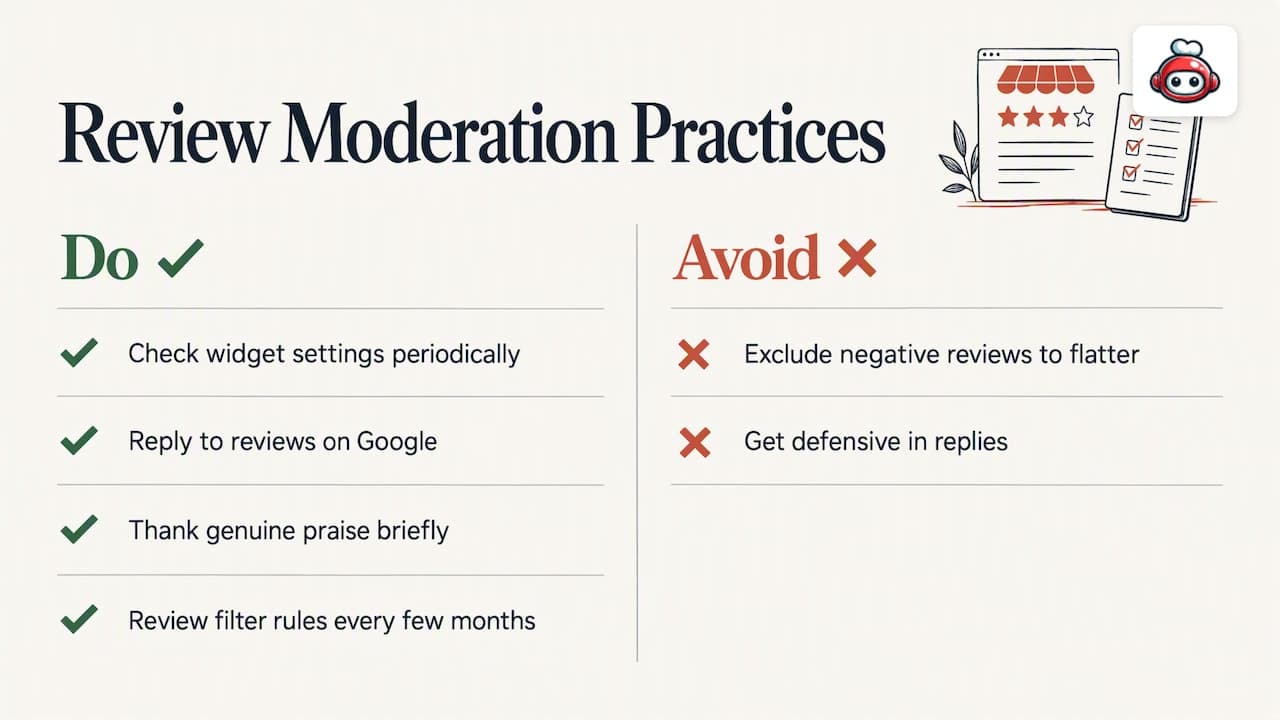
Once reviews appear on your site, treat them as live content rather than a one-off install. Check your widget settings periodically to confirm new reviews are still flowing through and that nothing outdated is stuck on display. Avoid manually excluding negative reviews from an embed just to present a flattering picture, since this risks the same selective-display concern Google's community has flagged.
Respond to reviews on Google itself, since most widgets pull the review text as it exists on your listing rather than letting you edit replies within the embed. A thoughtful, specific reply to a critical review often does more for trust than hiding it would, and our guide on replying to Google reviews sets out practical reply scripts for different situations. Keep your tone consistent across replies: thank genuine praise briefly, and address complaints factually without getting defensive.
Set a simple internal routine, such as checking new reviews weekly, so your displayed feed and your actual reputation never drift apart. If your embed includes a moderation filter, review its rules every few months to make sure it is not quietly hiding reviews that visitors would reasonably expect to see.
SEO benefits of embedding Google reviews and how to optimize them
Fresh, keyword-rich review text updates your page content regularly, which gives search engines new material to index without you writing anything yourself. Reviews often mention your location, products or services in natural language, which can reinforce the terms your site already targets.
To get the most from this, make sure your widget renders actual text in the page's HTML rather than loading everything through JavaScript that search engines might not fully process. Pair the widget with a visible star rating and keep your page's loading speed in mind, since a slow-loading review block can offset any ranking benefit. Linking from your review section back to your full Google listing also reinforces the connection between your website and your Business Profile.
Impact of embedding Google reviews on restaurant reputation and customer trust
For a restaurant, a visible run of recent, genuine reviews does more to reassure a hungry visitor than any amount of marketing copy, since prospective diners are reading other diners' honest impressions of the food, service and atmosphere. Seeing a steady stream of recent reviews, rather than a handful from years ago, signals that a restaurant is active and consistently cared for.
Review excerpts placed near your menu or booking button give a hesitant visitor the final nudge to commit, particularly when the excerpts mention specific dishes or details rather than generic praise. Keeping the flow of fresh reviews going matters as much as displaying them, and our piece on collecting Google reviews automatically covers practical ways to keep that pipeline active.
Legal considerations specific to restaurant industry when showcasing customer reviews
Displaying customer reviews on your restaurant's site carries a few points worth being careful about, though none of this is a substitute for your own legal advice. Only show reviews as they actually appear on Google, since editing or selectively trimming a review's wording to change its meaning risks misrepresenting a real customer's statement. Keep author attribution intact rather than stripping names or profile links, in line with the attribution requirements covered earlier in this guide.
If a review raises a genuine complaint, such as a claim about food safety or an allergen incident, it is worth seeking your own legal or industry guidance on how to respond publicly rather than relying on general advice. Taxes on any tips your staff receive through gratuity features are the worker's own responsibility, and this article does not cover tax or legal rules beyond that.
Integrating embedded Google reviews with RESTOBOT's loyalty and customer engagement features
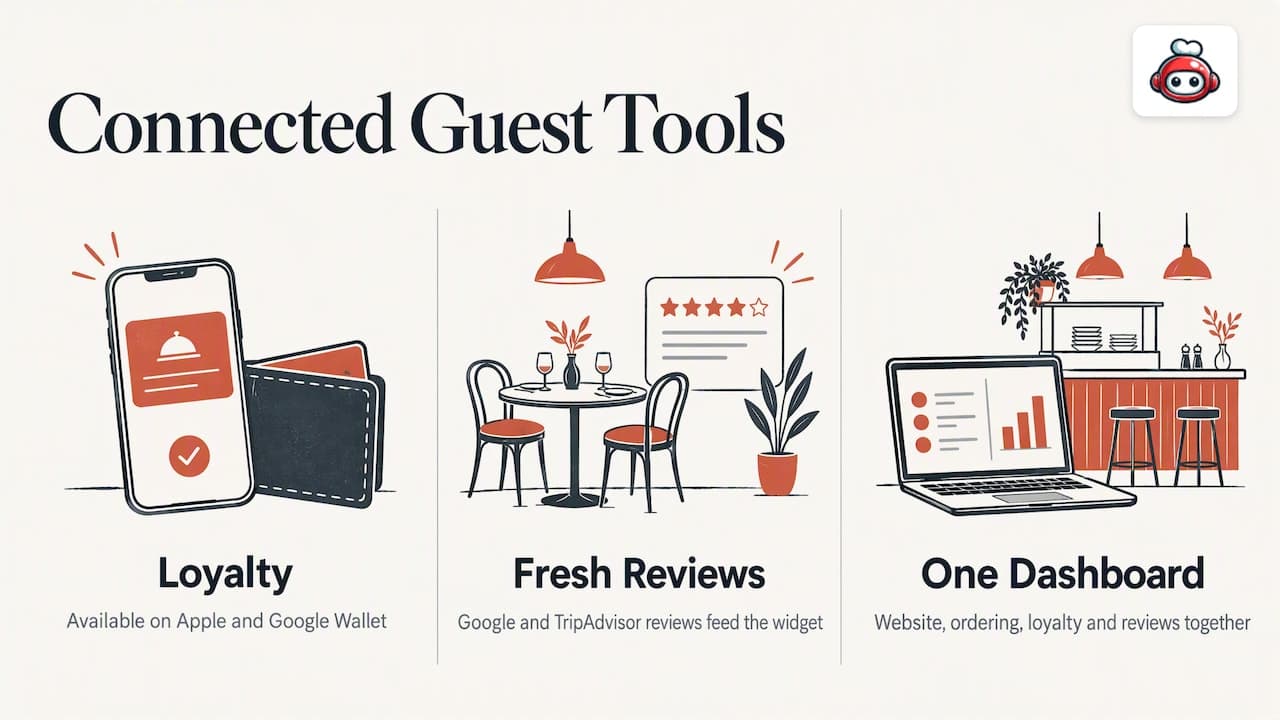
A review widget does more for a restaurant when it sits alongside the rest of your guest-facing tools rather than as an isolated block of code. On a RESTOBOT-built site, your Google reviews display sits on the same page as your digital loyalty card, which is available on Apple and Google Wallet, so a visitor reading recent reviews can join your loyalty programme in the same visit rather than leaving to search for it elsewhere. Our review-boosting tools work to keep the flow of fresh Google and TripAdvisor reviews active, which feeds directly into the review content your embedded widget displays.
Because the website, ordering, loyalty and review workflows run on one dashboard, you are not juggling a separate login for your widget provider, your loyalty app and your booking system. Driving more reviews is easier when the request reaches guests at the right moment, and our guide on creating a direct Google review link covers practical ways to get that link in front of diners via receipts, SMS or table QR codes.
Perspective: why restaurant operators often prefer integrated platforms
Most restaurant owners we talk to are not looking to become widget specialists. An integrated dashboard that already handles your site, your menu and your review workflow in one place cuts the setup and maintenance time that a separate widget, plugin and API connection would otherwise demand. The appeal isn't the technology itself, it's one fewer login to manage on a day already full of them.
*— ADMIN*
RESTOBOT: a ready option for restaurants who want reviews on their site fast
If you run a restaurant and would rather not manage a separate widget account on top of everything else, we build your site, menu and review display together from the start. Your RESTOBOT site is created automatically and instantly once your application is confirmed, so there is no separate waiting period for the review section to go live.
- We charge no commission on orders, unlike marketplace platforms such as Uber Eats, Glovo, Bolt Food, Wolt, Just Eat or Pyszne, which take around 30% of the net order value plus VAT, almost 40% in total.
- Our review-boosting tools work alongside your site to keep fresh Google and TripAdvisor reviews flowing.
- Staff can collect digital tips directly from guests with no commission taken by us, and a worker can set this up independently even if their venue has no contract with us at all.
Our MENU and FULL plans include the full site and review setup described in this guide. If you want to see what a RESTOBOT site looks like for your own restaurant, our pricing page is the place to start.
FAQ
What is the fastest way to embed Google reviews on a website?
A no-code widget is the fastest route: connect your Google Business Profile through the widget provider's authorisation screen, configure the layout, and paste the generated snippet into your site. Most small-business owners can have reviews live within minutes using this method rather than building a custom integration.
Does Google offer an official reviews widget?
No. Google's own support community confirms there is no single official embeddable widget; instead, review data is available through third-party widgets or the Places API.
Is it against Google's policy to show only five-star reviews?
Selectively displaying only five-star reviews while hiding lower ratings risks misrepresenting genuine customer sentiment, a concern discussed directly in Google's community guidance. It is safer to display an honest spread of reviews with their original ratings intact.
What fields do I need to display reviews via the Places API?
You should request reviews, rating and authorAttribution through fetchFields(), and display the author's name, profile link and photo alongside each review, as set out in the Place Reviews documentation. If you use AI-generated review summaries, you must also include the required disclosure text from the review summaries documentation.
How much does RESTOBOT cost for a restaurant website with review display?
Our MENU plan starts from 69 EUR per month and our FULL plan starts from 119 EUR per month, both detailed on our pricing page. Both plans include your website, embedded menu and review workflow as part of the subscription, with no commission on orders.