

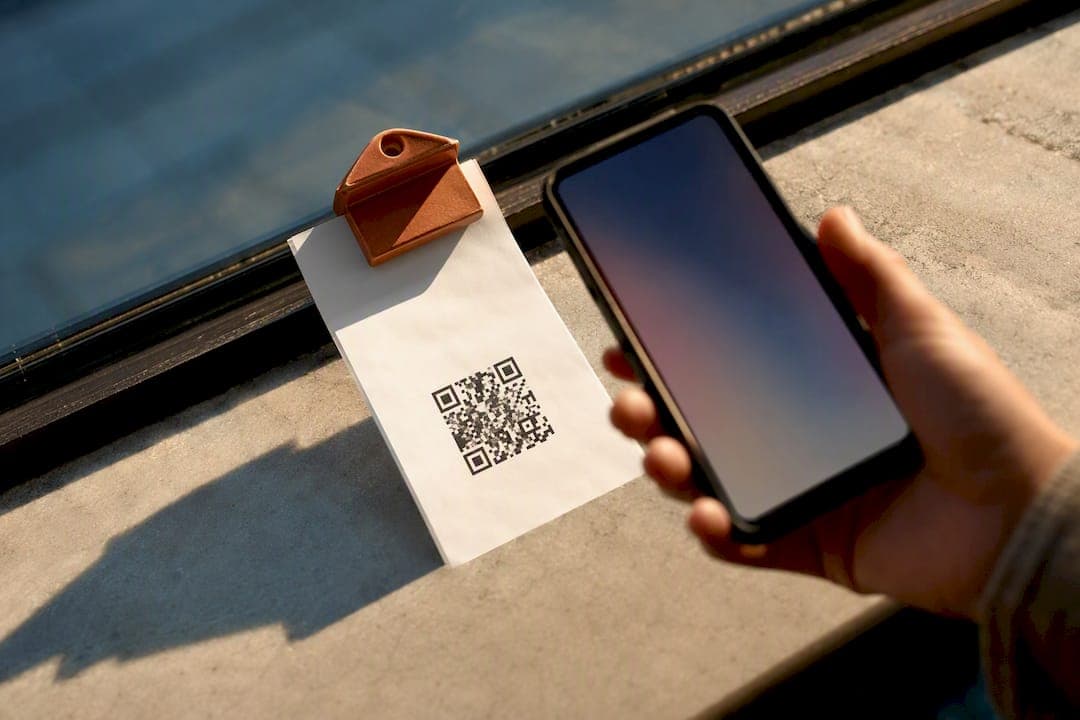
The fastest way to create a Google review link is to open your Google Business Profile, click "Ask for reviews," and copy the short link it generates for you. No profile access? Build it manually using your Place ID and Google's fixed URL pattern. Either way, skip anything that smells like paying for or trading favors for reviews. Google's policy bans that outright.
***
TL;DR:
>
- The most reliable way to generate a review link is through the Google Business Profile dashboard, which provides a short, custom link and QR code without coding. - For multiple locations, constructing links manually with Place IDs is more scalable and suits automated systems better than using the dashboard. - Testing QR codes across various devices and channels before printing ensures they actually lead customers to the review form and reduces wasted effort. - Sharing review links via SMS immediately after service yields the highest response rates, while printed QR codes should be high-resolution and tested thoroughly. - Google's policy strictly prohibits incentivized, traded-for, or manipulated reviews, requiring businesses to focus on genuine request methods and proper distribution.
***
Table of Contents
- How Do You Create a Google Review Link?
- Getting Your Official Review Link From Google Business Profile
- Can You Get a Review Link From Google Maps Instead?
- Building a Direct Link With Your Place ID
- Should You Shorten or Brand Your Review Link?
- Where Should You Actually Share the Review Link?
- What Should You Avoid When Requesting Reviews?
- How RESTOBOT Helps Restaurants Put This Into Practice
- The Real Bottleneck Isn't the Link
- Sources
- FAQ
How Do You Create a Google Review Link?
You've got four real options, and which one fits depends on whether you manage the Google Business Profile (GBP), how many locations you run, and whether you need something automated.
- GBP dashboard: The fastest, most reliable route if you're verified. It hands you a ready-made short link (the format looks like
g.page/r/xxxxx/review) plus a QR code, no coding required. - Maps or search copy: Good if you don't have GBP login access but can find your business listing publicly. You copy a link straight from the "Write a review" panel.
- Place ID method: The move for multi-location brands or anyone building links programmatically. You construct the URL yourself using a unique ID tied to that specific business location.
- Third-party generators: Tools built specifically to spit out both a short link and a QR code in one pass, useful if you want speed over control. Check the tool's reputation before trusting it with your business listing data. Some free generators pull your Place ID automatically and skip the manual lookup step entirely.
For most single-location restaurants, the GBP dashboard wins on speed and reliability. Multi-location operators usually end up needing the Place ID method anyway, since it scales better across dozens of listings.
Getting Your Official Review Link From Google Business Profile
This is the method Google itself documents, and it's the one that produces the cleanest short link.
- Sign in at business.google.com with the account that manages your listing.
- Select the correct location if you manage more than one.
- Find the "Get more reviews" or "Ask for reviews" card on your dashboard home screen.
- Click it, and Google generates a short link automatically, no setup needed on your end.
- Copy that link, or click through to download the accompanying QR code as a PNG.
- Right-click the QR image on desktop and choose "Save image as" to store a high-resolution copy for printing.
- Scan it with your own phone before it goes anywhere near a customer.
If the "Ask for reviews" card isn't showing up, your profile may not be fully verified yet, or you're logged into an account without owner or manager permissions on that listing. Multi-location businesses need to repeat this per location. Each one gets its own distinct short link tied to its own listing.
Pro Tip: *Save every location's link and QR code in a shared folder your whole team can access. When a manager asks for the review QR two months from now, you don't want someone hunting through old email threads to find it.*
Can You Get a Review Link From Google Maps Instead?
Yes, and it's the easier path if you don't have GBP dashboard access at all.
- Open Google Maps on desktop or the mobile app, and search for your business by name.
- Click into the business panel that appears on the left (desktop) or bottom (mobile).
- Tap "Write a review," or look for a "Share" icon depending on which interface you're using.
- Copy the link that Google presents.
The catch: Maps sometimes returns a long-form URL instead of the clean g.page short link. Both work identically. Both open the same write-a-review form. But the short version is easier to text, print, or read aloud over the phone, so it's worth checking whether your copied link is the long version and swapping it for a short one when you can.
Building a Direct Link With Your Place ID
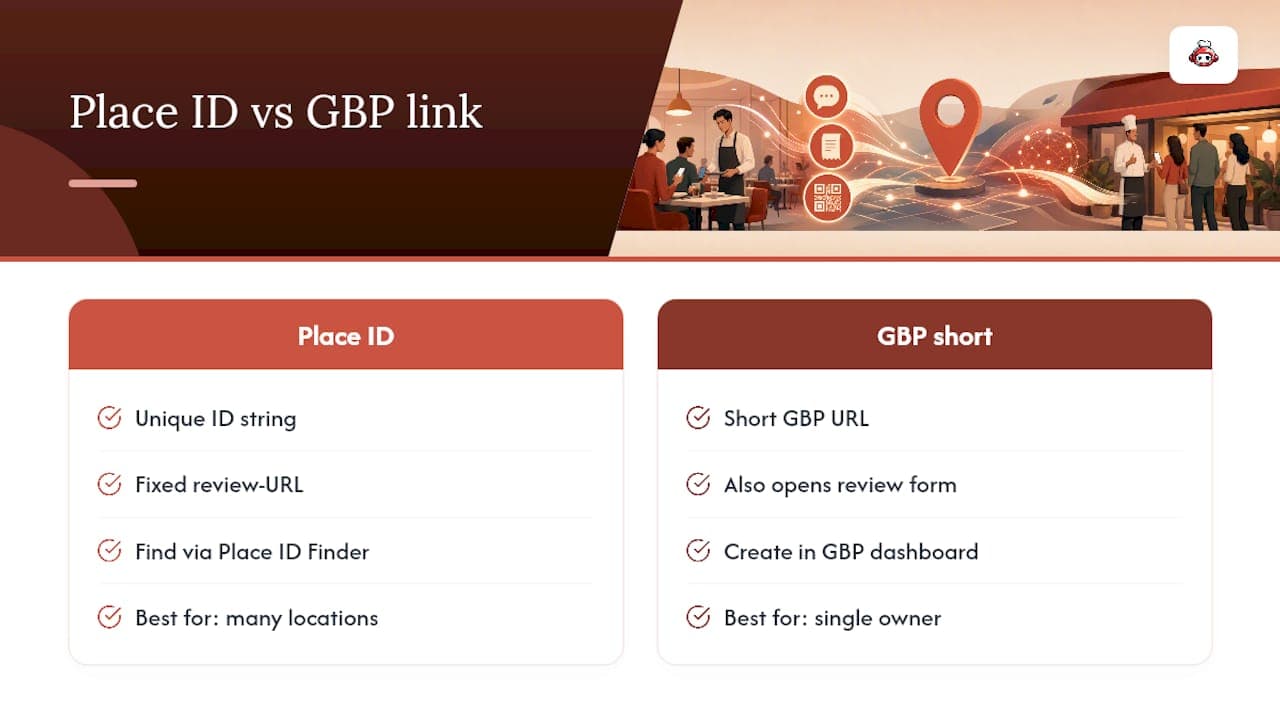
Every business location on Google Maps has a Place ID, a unique string of letters and numbers tied permanently to that specific listing. Once you have it, the URL format is fixed and simple:
https://search.google.com/local/writereview?placeid=YOUR_PLACE_ID
Swap in your actual Place ID and the link opens directly to the write-review form for that exact location, according to Reputation's guide on building direct Google review URLs. You can find your Place ID using Google's Place ID Finder tool, which lets you search your business by name and address and returns the ID string you need.
This method makes the most sense when you're managing links for a dozen locations at once, or building an automated system that generates review requests without a human copying links one by one. For a single restaurant with one owner checking a dashboard occasionally, the GBP short link is simpler and does the same job.
Should You Shorten or Brand Your Review Link?
Raw Google URLs work fine, but they're ugly, and ugly links get typed wrong or ignored on printed materials.
- Branded redirects (something like
yourrestaurant.com/review) look more trustworthy on a receipt or table tent, and according to Thrive Agency's guide on sharing review links, you can quietly change where that redirect points later without reprinting a single flyer. - Generic shorteners like Bitly or TinyURL work too, and let you attach UTM parameters so you can track which channel (SMS versus email versus receipt) actually drives clicks.
- QR codes should be exported at high resolution, PNG or SVG, not a blurry screenshot, so they scan cleanly on a dim restaurant table.
Test every QR code on at least two different phones before printing anything in bulk. A code that looks perfect on your screen can still fail to scan under bad lighting or from three feet away.
Pro Tip: *Print a short backup URL in small text right next to the QR code. Some guests won't have a working camera scanner, and a typed fallback keeps you from losing that review entirely.*
Where Should You Actually Share the Review Link?
Timing and placement decide whether that link gets clicked or ignored.
- Text message: Send it within 24 hours of the visit. SMS consistently pulls the highest open and response rates of any channel for review requests, and a short branded link fits cleanly in a text.
- Email: Follow up two to three days after the transaction, not immediately, and give the email a single obvious button rather than burying the link in a paragraph.
- On-premise: Print the QR code on receipts, table tents, or hand a printed card to a customer as they're settling the check, right at the moment the meal or service just went well.
- Website footer or thank-you page: A simple "Leave a review" button on your contact page or post-order confirmation screen catches visitors who never got a text or email at all.
Use a different short link or UTM tag per channel. Once you can see that texting outperforms email by a wide margin, you stop wasting effort on the weaker channel and lean harder into the one that's actually working.
What Should You Avoid When Requesting Reviews?
Google's own policy is explicit: no incentives, no discounts in exchange for a review, no filtering out unhappy customers before asking, and nothing that manipulates the final rating. Violating this can get reviews removed or, in repeat cases, put your entire profile at risk, according to Google's Business Profile support documentation.
Before any link or QR code goes into wide circulation, run it through a short checklist:
- Open the link on an iPhone, an Android phone, and a desktop browser. All three should land directly on the write-review form.
- Scan the printed QR code and confirm it opens the exact same destination as the digital link.
- Keep your ask message short and personal. "Thanks for coming in tonight, we'd love a quick review" beats a generic mass blast every time.
- Never repeat the request publicly or push it on a customer who already declined once.
Businesses that skip the multi-device test tend to discover the problem the hard way, after a batch of table tents already went to print with a broken link.
How RESTOBOT Helps Restaurants Put This Into Practice
A restaurant juggling a POS system, a website, and a review request process usually ends up with review links scattered across three different tools and nobody quite sure which QR code is current.
- The platform can build your restaurant website automatically upon application approval, providing a central place to embed your current review link without coding.
- Print-ready QR material and review workflows are integrated with your ordering and reservation setup, rather than requiring separate apps.
- The RESTOBOT blog publishes practical guides and templates, including a breakdown on collecting 100 Google reviews a month automatically, built specifically for restaurant operators, not generic small businesses.
If you'd rather not manage five different tools to get one review link in front of customers, RESTOBOT folds that into the same dashboard you're already using to run orders and reservations.
The Real Bottleneck Isn't the Link
Most guides on this topic treat link creation as the hard part. It isn't. Copying a short link from your Google Business Profile takes fifteen seconds. The actual failure point is almost always distribution: businesses generate a perfectly good link, stick it in a QR code on a table tent, and then never test it, never track which channel works, and never ask again once the code fades in the sun after three months of foot traffic.
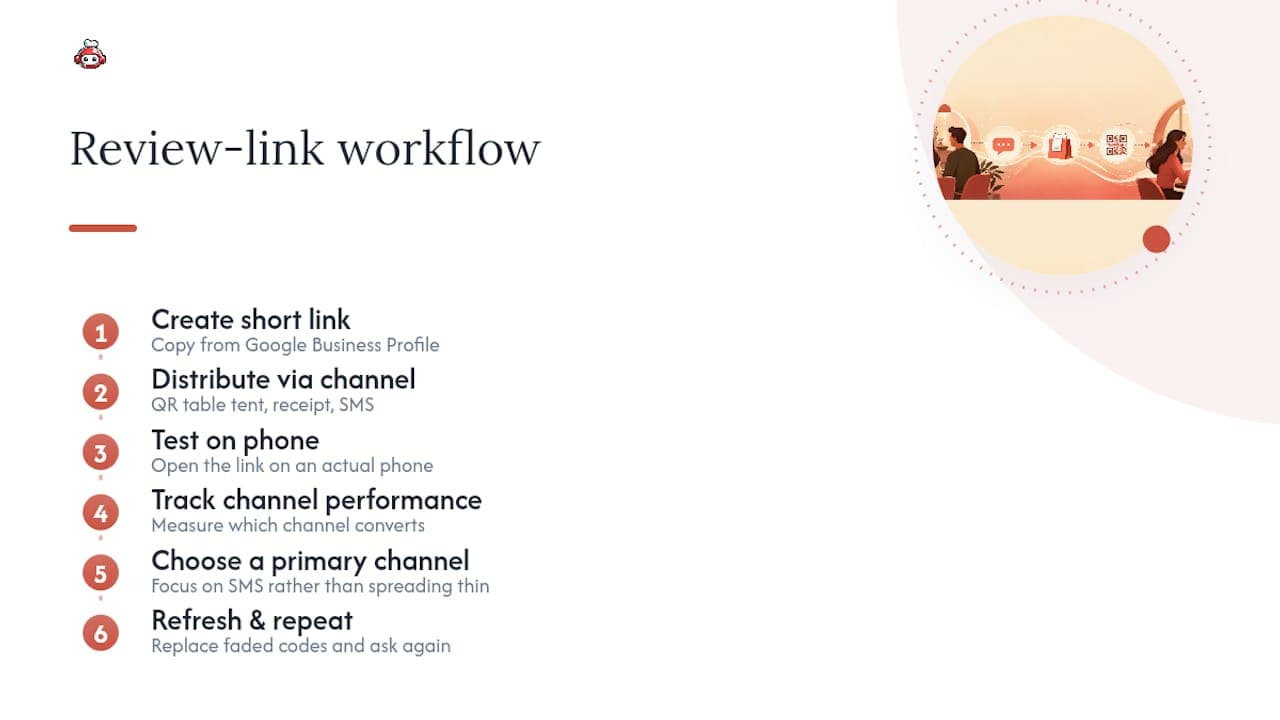
The conventional advice to "just add a QR code to your receipts" undersells how much placement and timing matter. A code handed to someone mid-meal converts differently than one buried at the bottom of a receipt they'll fold and shove in a pocket. If you take one thing from this guide, prioritize testing your link on an actual phone before it goes anywhere public, and pick one primary channel, probably SMS, to focus your energy on rather than spreading thin across four channels you'll never actually measure.
Restaurants that treat the review link as a permanent piece of infrastructure, not a one-time task, are the ones whose review counts actually climb month over month.
*— ADMIN*
Sources
FAQ
How Can I Leave a Google Review for a Company?
Search the business name on Google or Google Maps, open its listing, and click "Write a review" in the business panel. You'll need to be signed into a Google account to submit it.
How Can I Get Free Google Reviews?
There's no legitimate way to buy or generate fake reviews. The reliable free method is asking real customers directly through SMS, email, or a QR code at the point of service, since Google's policy bans incentivized or manipulated reviews entirely.
How Do I Put Google Reviews on My Website for Free?
You can embed a "Leave a review" button linking to your GBP short link on your contact page, footer, or thank-you page at no cost. Displaying the actual review content typically requires a widget or plugin, but linking out to leave a new review is free and simple.
Why Can't I Leave a Review on Google?
Common causes include not being signed into a Google account, the business listing being unverified or suspended, or a temporary restriction Google places on accounts that post reviews in unusual patterns. Signing out and back in, or trying a different device, resolves most cases.
What's the Difference Between a Short Link and a Place ID URL?
A short link (the g.page format) comes directly from your Google Business Profile dashboard and is easiest for manual sharing. A Place ID URL is built manually using a fixed pattern and works better for automated systems or multi-location businesses managing many listings at once.