

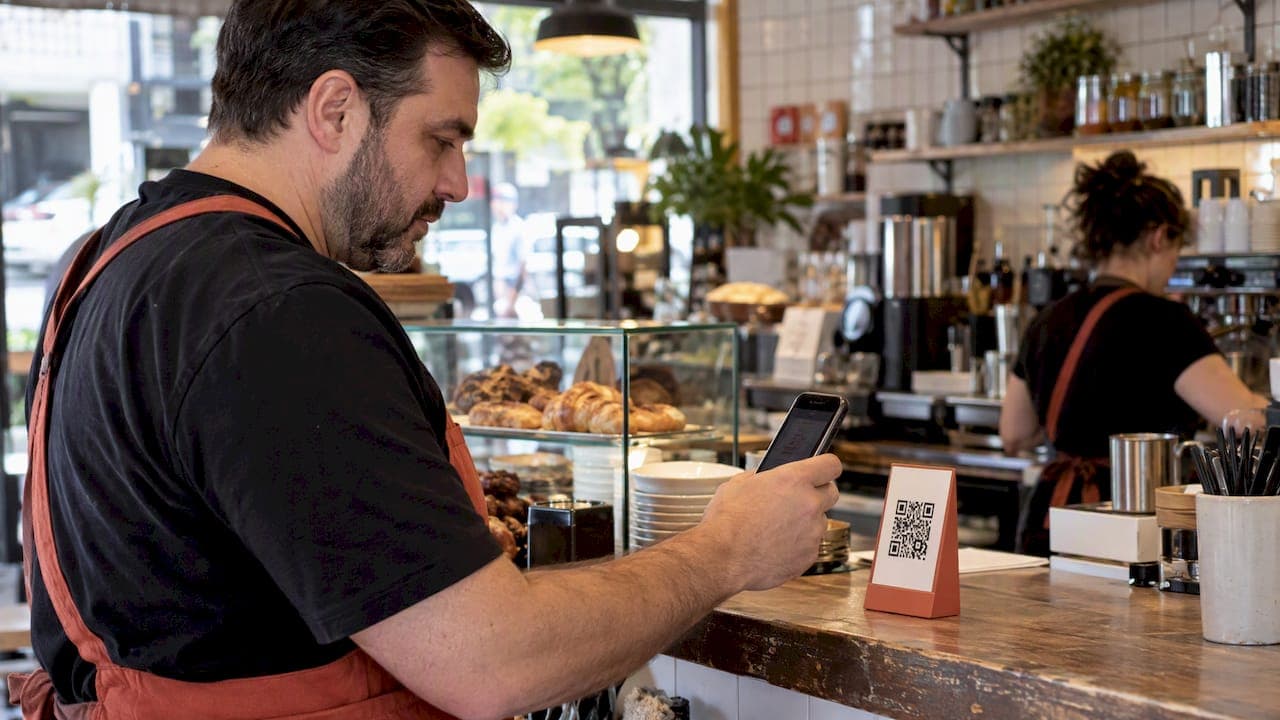
You can generate an official Google review link and download a QR code from your Business Profile using a desktop browser, and scanning it opens the customer's Google review flow directly on their phone. The whole setup takes a few minutes. The one rule to keep in mind: never offer anything in exchange for a review.
***
TL;DR:
>
- Google’s built in QR generator is desktop only; test the saved code on an iPhone and Android phone to confirm it opens the review form. - For print, use the short g.page link and an SVG with a blank margin; keep the code at least 1 inch wide and add a fallback instruction. - Put codes on receipts, takeout packaging, and table stands, and send a text or email within an hour or two while the meal is fresh. - Google prohibits incentives and may flag scripted review language; ask every customer the same way, avoid repeated prompts to regulars, and report suspected fraudulent reviews.
***
Table of Contents
- How to generate your official Google review QR code
- Alternative: build a QR code from your review link
- Where and when to place your review QR code
- Make sure your QR code scans on every phone
- Google's review policy: what you can and cannot do
- A one-shift rollout for restaurant managers
- What most advice on this topic gets wrong
- How RESTOBOT turns review QR codes into a routine, not a project
- FAQ
- Sources
How to generate your official Google review QR code
Google builds the review link and QR code tool directly into your Business Profile, so you do not need any outside software to get started. The official instructions walk through the process, and the whole thing takes about five minutes once you are signed in.
- Sign in to your Google Business Profile with the account tied to your restaurant listing.
- Find the "Get more reviews" or "Ask for reviews" card on your dashboard.
- Copy the review link directly, or click the option to generate a QR code.
- Right-click the QR image and choose "Save image as" to store it on your computer.
- Print or embed the saved file wherever customers will see it.
One detail trips up a lot of managers: Google's QR generation tool only works on desktop browsers. If you try to do this from your phone, the option will not be there, so plan to set this up from a computer rather than during a rushed moment on the floor.
Before you print anything, test the saved QR code on two different phones, ideally one iPhone and one Android device. Confirm it opens the write-a-review screen and not a generic business page. A thirty-second check now saves you from reprinting signage later.
Alternative: build a QR code from your review link
If you cannot get to a desktop right away, or you want a QR code that matches your restaurant's branding, you can build one from your review URL instead of using Google's built-in generator.
- Grab your short review URL or the longer write-a-review link from your Business Profile or a Google Business Profile community thread, where managers often share how they retrieve it.
- Paste that link into a reputable QR generator and export it as a PNG for digital use or an SVG for print, since vector files stay sharp at any size.
- Check a site like Trustpilot for user feedback on a generator's reliability before you commit to one for a batch of printed materials.
- Reach for a third-party tool mainly when you need brand colors, a logo overlay, or dozens of codes generated at once.
- Stick with Google's own link whenever possible. Routing through an unfamiliar redirect service adds a step that can confuse customers or break if the third-party site goes down.
Where and when to place your review QR code
Placement decides whether your QR code gets scanned at all. Put it where a customer is already pausing, not where they have to go looking for it.
- Print it on the receipt, right under the total, so it is the last thing a satisfied diner sees before leaving.
- Add a small tabletop stand near the register or at each table for walk-ins who finish a good meal.
- Include it on takeout and delivery packaging for customers who never sit down in your dining room.
- Drop it into a post-checkout text or email within an hour or two of the visit, while the experience is still fresh.
- Train staff to mention it verbally during a positive handoff, like clearing plates after compliments on the meal.
Keep the call-to-action short: "Loved dinner? Scan to tell Google" works better than a paragraph of instructions. Print it large enough to scan from arm's length, at least 1 inch across, with strong contrast between the code and its background.
Pro Tip: *Run two versions of your tabletop sign with different wording for a few weeks and track which one gets scanned more before committing to a final design.*
Make sure your QR code scans on every phone
A QR code that looks fine on your screen can still fail in a dim dining room or on an older phone camera. A few technical choices make the difference between a smooth scan and a frustrated customer who gives up.
- Shorter URLs produce simpler QR patterns, and shorter links scan more reliably on older or low-resolution phone cameras, which matters if your customer base skews toward budget or hand-me-down devices.
- Use PNG for screens and SVG for anything printed, and keep a quiet zone, a blank margin, around the code so cameras can lock onto it.
- A shorter g.page link produces a lower-density QR code with fewer modules, which improves scan reliability in low light and on older cameras compared with a long write-a-review URL.
- Before printing in bulk, test scan speed, confirm the redirect lands on the actual review form, and have a short fallback instruction ("or search our name on Google") printed nearby in case a scan fails.
Choose the short g.page link for anything printed at a small size, and save the longer write-a-review URL for digital placements like email buttons, where screen resolution is not a concern.
Google's review policy: what you can and cannot do
Google draws a hard line against paying for reviews in any form. Offering incentives, discounts, or free items in exchange for a review counts as fake engagement and puts your Business Profile at risk of a policy violation. Read our breakdown of Google's reviews policy for a fuller rundown of what triggers enforcement.
Safer practices that still drive volume:
- Ask every customer the same way, rather than only prompting the ones you suspect will leave five stars.
- Skip scripted review text or suggested phrases, since Google can flag templated language as inauthentic.
- Space out prompts so regulars are not asked to review your restaurant every single visit.
- Use your Business Profile's built-in flagging tool to report reviews you believe are fraudulent or posted by someone who never visited.
A one-shift rollout for restaurant managers
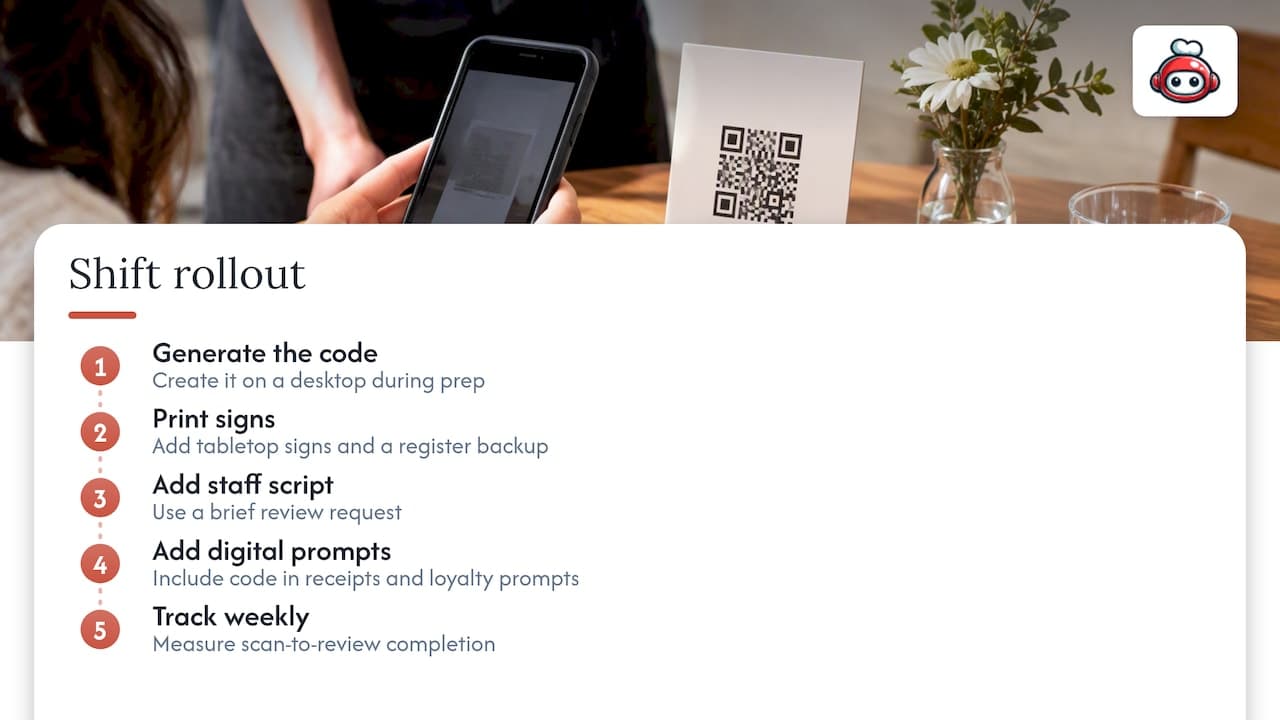
A manager can go from zero to a working review QR code before the end of a single shift. Generate the code on a desktop during prep, print a handful of tabletop signs, and tape a backup copy near the register for staff to point at. Add a line to the shift script: "If you enjoyed everything, we'd appreciate a quick Google review." Tie the same QR code into digital receipt and loyalty prompts so it reaches both dine-in and delivery customers. Track scan-to-review completion weekly to see which placement is actually converting.
What most advice on this topic gets wrong
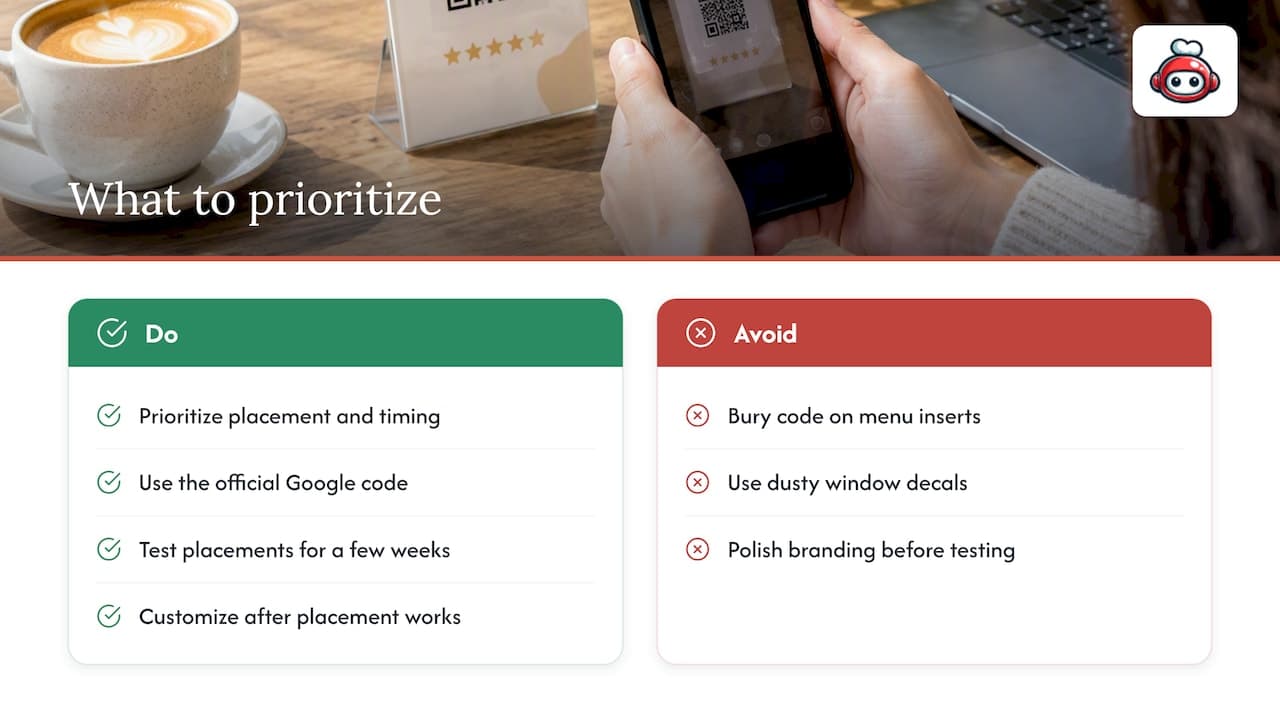
Most guides treat the QR code itself as the hard part, when it is the easiest five minutes of the entire process. The real work is in placement and timing, and that is where most restaurants quietly fail. A code buried on a laminated menu insert or a dusty window decal gets almost no scans compared with one handed to a customer at the exact moment they are feeling good about the meal.
The other overrated piece of advice is chasing a perfectly branded, custom-colored QR code before you have even tested whether your current one gets scanned. Branding matters far less than whether the code sits on the receipt, the takeout bag, or the follow-up text. Start with the plain, official Google code, place it aggressively across every touchpoint for a few weeks, and only invest in a custom design once you know the placement works. Sequencing beats polish here, and most operators have it backwards.
*— ADMIN*
How RESTOBOT turns review QR codes into a routine, not a project
We built our platform so restaurants do not have to manage review requests as a one-off task. It ties QR-ready review assets directly into digital receipts, loyalty prompts, and messaging your restaurant already sends, so the ask happens automatically instead of depending on a staff member remembering to mention it.
- The platform can generate review and tip QR assets that plug into your existing customer touchpoints.
- Our pricing page lists the LOYALTY, MENU, and FULL plans, each built around a different combination of website, ordering, and loyalty features.
- Individual staff can set up their own commission-free tip collection profile, complete with a personal QR code and public rating, independent of whether their restaurant runs on RESTOBOT at all.
If you want review requests and tipping on the same kind of automatic rails, take a look at our pricing plans and see which tier fits your current setup.
FAQ
How do I get a Google QR code?
Sign in to your Google Business Profile from a desktop browser, open the "Get more reviews" section, and either copy the review link or generate a QR code to save. The tool is only available on desktop, not mobile.
How do I leave a Google review link?
Find your Business Profile's share or review option and copy the short link provided there, then send it by text, email, or print it on a receipt. Customers who click it land directly on your write-a-review screen.
How do I scan to leave a review?
Open your phone's camera app, point it at the QR code, and tap the notification that appears to open the link. It routes straight to your Google write-a-review form, where the customer picks a star rating and adds comments.
How do I get a review QR code for my restaurant?
Generate it through your Google Business Profile on desktop, then place it on receipts, tabletop signs, and takeout packaging where customers naturally pause. Tools like RESTOBOT can tie that same QR code into digital receipts and loyalty prompts for a more consistent rollout.