

Menu sync with POS means connecting your point-of-sale system to every ordering channel so item names, prices, photos, and availability update automatically instead of by hand. The most reliable approach treats the POS as the single source of truth and uses webhook or real-time sync wherever the vendor supports it. Before you turn anything on, confirm your POS version supports an integration and switch on a staging or test environment first.
***
TL;DR:
>
- Webhook-based sync offers instant updates for availability and stockouts, reducing rejected orders and mismatch issues across channels. - Using stable item IDs for mapping and explicitly configuring modifiers and taxes prevents common synchronization errors like pricing discrepancies. - Regularly testing with complex items and monitoring error logs helps catch mapping or integration failures before they impact customers. - Centralized management, staged publishing, and proper timezone handling minimize menu drift and ensure consistency between locations and channels. - Adopting a platform like RESTOBOT simplifies setup, automates maintenance, and provides built-in features like staged updates and direct order processing to improve reliability.
***
Table of Contents
- What menu sync with POS actually does
- How POS integrations work behind the scenes
- Setting up menu sync step by step
- Getting modifiers, sizes, and taxes to map correctly
- Keeping menus consistent across locations and channels
- Troubleshooting sync failures and monitoring for errors
- A quick-reference checklist and the KPIs worth tracking
- Security and privacy considerations when syncing menu data
- How reliable sync changes customer experience and sales reporting
- Why reliable menu sync pays for itself
- RESTOBOT as a practical option for menu and POS sync
- Sources
- FAQ
What menu sync with POS actually does
Menu sync moves a defined set of fields from the POS to every channel that shows your menu: website, app, delivery platforms, and kiosks. The fields typically synced are:
- Item names, descriptions, and photos
- Prices and price tiers by location
- Categories and menu sections
- Modifiers, sizes, and variations
- Availability flags and 86'd items
- Location-specific schedules and hours
Whether the connection is one-way (POS pushes out, channels never write back) or two-way (channels can also update the POS, such as marking an item sold out from a tablet) changes how fast a kitchen finds out about a stockout and whether online orders match what the kitchen can actually make. Done well, the payoff is fewer rejected orders, consistent pricing across every screen a customer sees, and reporting that reflects what was actually sold rather than what someone forgot to update three weeks ago.
How POS integrations work behind the scenes
Three architectures dominate menu sync, and each has a different failure mode. Webhook-based sync pushes updates instantly the moment something changes in the POS, which gives the best experience for anything time-sensitive, like marking an item sold out. It requires an HTTPS endpoint that can accept a POST request and respond quickly, along with retry logic for when that endpoint is briefly unreachable. Vendor specs such as the Wix Restaurants POS SPI define exactly what that payload looks like and what a compliant response must return.
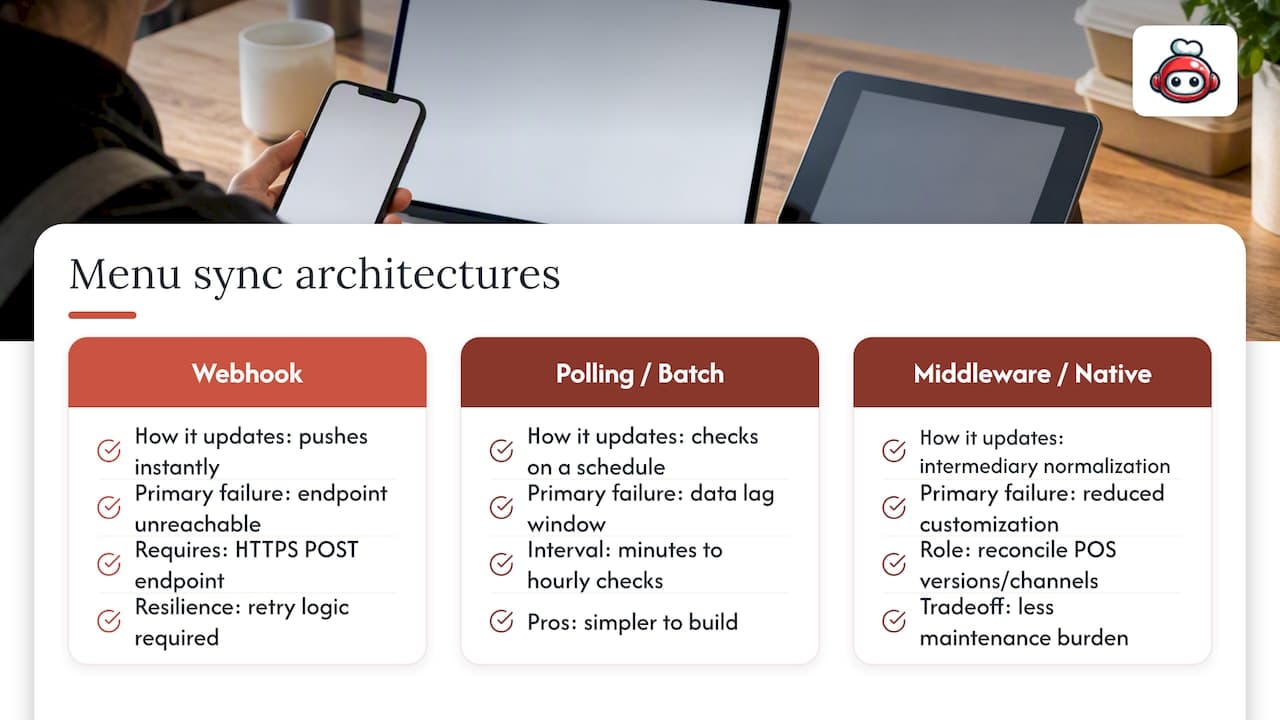
Polling or batch sync checks the POS on a schedule, every few minutes or once an hour, instead of reacting instantly. It is simpler to build but leaves a window where a channel can show an item as available when it just sold out, or display yesterday's price.
Middleware and native connectors sit between the two extremes. A normalization layer can reconcile menu data across several POS versions or multiple channels at once, trading some customization for less maintenance burden, a tradeoff integration platforms describe in detail. Whichever pattern you pick, the underlying POS structure stays the same: variants nest under parent items, schedules are timezone-aware, and every price line references a tax code that has to map correctly on both sides.
Setting up menu sync step by step
Enabling sync is sequential work, and skipping a step tends to surface as a mismatched price two weeks later rather than an error message today.
- Export and back up your current menu so you have a known-good state to restore if something goes wrong.
- Capture your item IDs from the POS; these are the anchors every mapping rule depends on.
- Confirm your POS version and API access, since older POS versions sometimes lack the endpoints a sync tool needs.
- Authorize the integration inside your menu or ordering platform and choose which locations it applies to.
- Pick a sync direction, one-way from POS or two-way, and decide which fields are included.
- Configure publishing behavior: auto-publish changes immediately or hold them in a staged queue for review.
- Set sync frequency and timezone so scheduled items (breakfast menus, happy hour pricing) switch at the correct local time.
- Push a sample update (change one price or description) and confirm it lands correctly on every channel.
- Verify the mapping on a few items with modifiers and variants, not just simple ones.
- Place a test order and confirm the kitchen ticket shows the right item, modifiers, and price.
Pro Tip: *Run your first test on an item with modifiers and a size variant, since that is where mapping errors hide, not on a simple single-price item.*
Vendor guides consistently recommend this same final step: push one update and place a test order before trusting the sync with your full catalog.
Getting modifiers, sizes, and taxes to map correctly
Mapping is where most menu sync problems actually originate, not in the connection itself. A few rules keep it clean:
- Use stable item IDs as the anchor for every mapping, never item names, which change more often than IDs do.
- Model sizes as child items or priced variations under a parent, matching how the POS structures them.
- Map modifier groups explicitly rather than relying on free-text modifiers, which rarely translate cleanly between systems.
- Decide up front whether tax is applied at the POS or at the channel level, and make sure the displayed price reflects that choice consistently.
- Sync live inventory counts only for items where you track exact stock; use simple availability flags (on or off) for everything else.
Getting this wrong shows up as a $14 entree charging $11 online, or a "small" that vanishes because it was never mapped to anything the channel recognizes.
Keeping menus consistent across locations and channels
Menu drift, where one location's app shows a different price or item than another, almost always comes from too many people editing the same data without a clear hierarchy. A centralized source of truth with role-based access and an audit log fixes most of it: managers can edit their own location's availability, but core menu structure stays locked to a smaller group.
Staged publishing helps here too. Changes sit in preview before going live, so a typo in a description does not reach customers before anyone notices. Location-specific schedules need timezone handling that respects each site's local time, and lower-level restrictions (a single location marking an item sold out) should always override a broader, chain-wide availability setting rather than the other way around.
For anything urgent, a documented emergency hotfix path, one person authorized to pull an item immediately without waiting for the normal approval workflow, keeps a genuine allergen or stockout issue from lingering online for hours.
Troubleshooting sync failures and monitoring for errors
When sync breaks, the fastest fix comes from knowing which error you're looking at. A handful of codes cover most incidents: invalid_item_mapping means the channel received an item it cannot match to anything in its catalog, endpoint_down means the webhook receiver did not respond, pos_error means the POS itself rejected the request, and cc_rejected relates to payment rather than menu data. These are the same categories documented in POS webhook specifications.
Sync failures without monitoring often go unnoticed until a customer complains, since a silent webhook failure produces no visible symptom on the POS side. Check webhook delivery logs, API response codes, and your sync dashboard first. Recovery usually means re-running the sync for the affected item, rolling back to the last known-good menu state, or manually toggling visibility for a critical item while the underlying issue gets fixed. If you escalate to support, hand over the item IDs, timestamps, and the raw webhook payload or error response so they aren't reproducing the problem from scratch.
A quick-reference checklist and the KPIs worth tracking
Reliable sync comes down to a short list of habits repeated consistently rather than a one-time setup.
- Back up the menu and confirm your test sync passed before publishing any change.
- Audit recent edits weekly and check that alerts or error logs are actually being reviewed, not just collected.
- Default to the POS as your single source of truth, and prefer webhooks over polling wherever your vendor supports them.
- Stage every change before it goes live, and keep one canonical modifier catalog instead of letting each channel define its own.
Pro Tip: *Track three numbers monthly: menu mismatch incidents, average sync latency, and order error rate. If any of them trend up, the root cause is almost always a mapping or governance gap, not the integration itself.*
Security and privacy considerations when syncing menu data
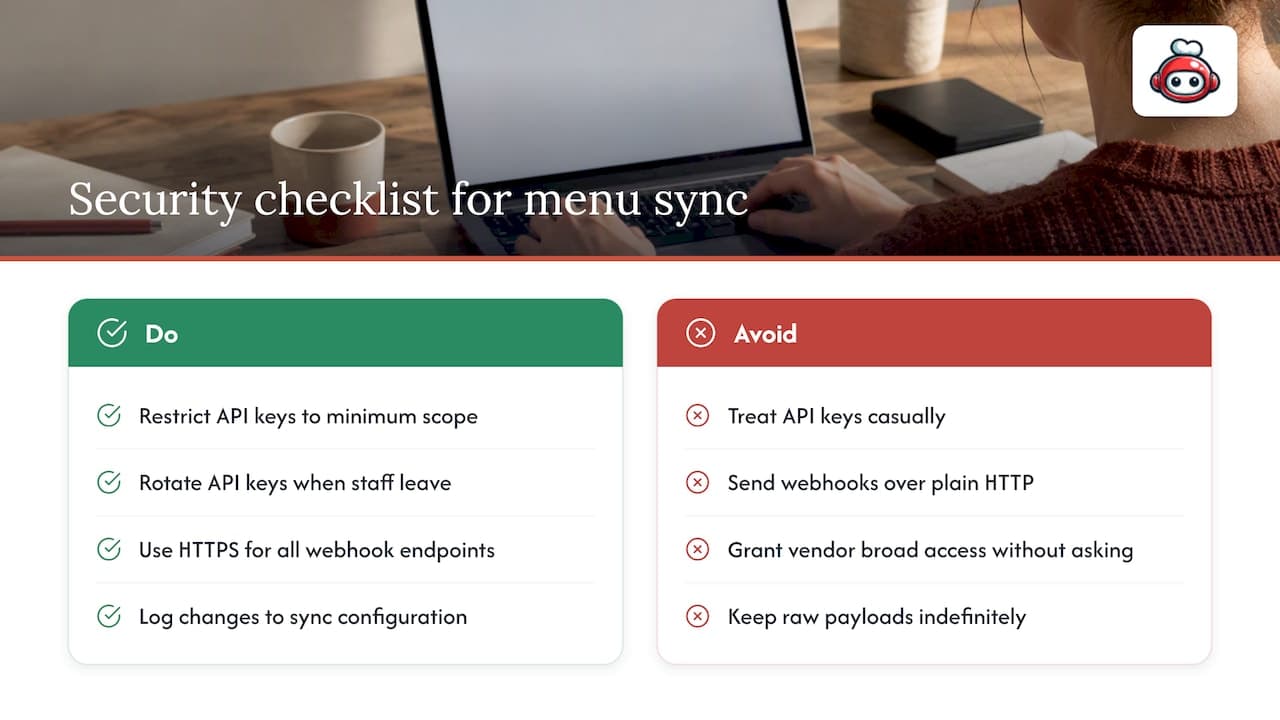
Menu data itself is low-sensitivity, but the connections that move it often carry more than names and prices. Webhook endpoints and API keys are credentials, and treating them casually is the most common security gap in a sync setup. Restrict API keys to the minimum scope needed (read menu data, not full order or payment access) and rotate them when staff with access leave.
HTTPS is non-negotiable for any webhook endpoint, since menu and order payloads can include customer-facing details that should never travel over plain HTTP. Log access to the sync configuration itself, not just to the menu data, so you know who changed an endpoint URL or reauthorized an integration and when.
Where the sync touches order or payment data alongside the menu, such as a webhook that carries both menu items and order details, handle that payload with the same care as any payment-adjacent system: limit who can view raw logs, and purge payloads you no longer need rather than keeping them indefinitely. If a vendor's integration requires broader access than the menu sync itself needs, ask why before granting it. A sync integration is a standing connection into your operational systems, and the fewer people and systems that can modify it, the fewer places something can go wrong.
How reliable sync changes customer experience and sales reporting
A menu that matches reality changes the ordering experience in ways customers notice even if they never think about why. An item that shows as available but turns out to be sold out is a canceled order, a refund, and often a lost customer; a price that differs between the app and the counter is a dispute waiting to happen. Real-time sync on availability-critical fields removes both of those friction points, which is why vendor documentation treats sold-out status as one of the fields most worth syncing instantly rather than on a delay.
The same accuracy compounds in reporting. When every channel reflects the same prices and item structure, sales analytics reconcile cleanly across locations instead of requiring a manual cleanup pass before anyone trusts the numbers. Modifier-level data, synced correctly, also shows which add-ons actually drive revenue, something that gets lost when modifiers arrive as unmapped free text. Operators who treat menu sync as a reporting input, not just an ordering convenience, tend to catch pricing drift and underperforming items faster than those who only look at sync when something visibly breaks.
Why reliable menu sync pays for itself
The math is simple once you've dealt with a few sync failures: every canceled order from a stockout that wasn't reflected online costs more than the time it would have taken to fix the mapping that caused it. Fewer refunds, cleaner reporting, and a kitchen that isn't fielding tickets for items it doesn't have on hand all trace back to the same root cause, a menu that matches reality everywhere it appears.
*— ADMIN*
RESTOBOT as a practical option for menu and POS sync
If you're evaluating whether to build this yourself or adopt a platform that already handles it, the platform's website and ordering system come with an embedded menu available from the start, enabling rapid deployment once your application is confirmed. That removes the setup work described above from your plate entirely rather than asking you to manage webhooks and mapping rules on your own.
Relevant pieces of the platform include:
- An embedded menu tied directly to your website and ordering flow, not a separate system to keep in sync
- Staged publishing so changes go live on your schedule, not the moment they're saved
- Availability controls at the item level for handling stockouts without touching the whole menu
- Ordering and tipping without a commission model, allowing revenue from orders and tips to go directly to the business and the staff members rather than incurring per-order fees.
If you want to see how it fits your setup, review RESTOBOT's pricing plans, which range from the LOYALTY plan to the full-featured FULL plan, or look at the tipping feature if commission-free tips for staff are the more immediate need.
Sources
When you brief a developer on a menu sync project, give them the specs, not a description of what you want. Useful starting points:
Include real item IDs, timestamps, and a sample payload in any developer ticket. It shortens the back-and-forth considerably.
FAQ
What does POS mean in the context of a menu?
POS stands for point-of-sale system, the software and hardware a restaurant uses to take orders and process payments. In a menu sync context, the POS usually holds the master version of item names, prices, and availability that gets pushed out to other ordering channels.
How do I add menu items to a POS like Toast?
Menu items are typically added inside the POS's own back-office or admin panel, where you set the name, price, category, and any modifiers before the item becomes available at the register. Once added there, a connected sync integration pushes that item out to your website, app, or delivery channels automatically rather than requiring you to re-enter it everywhere.
What is the best software for menu design?
There is no single best option; the right choice depends on whether you need standalone design software or a menu that's embedded directly in your ordering and POS system. An embedded menu, like the one built into a restaurant's own ordering platform, has the advantage of staying in sync automatically instead of needing separate updates.
What is the best POS software for restaurants?
The best POS depends on your service style, order volume, and which integrations you need, since full-service, quick-service, and multi-location operations have different priorities. Whichever POS you choose, confirm it has webhook or API support for menu sync before committing, since that determines how much manual work you'll do later.
How often should a menu sync run?
Real-time or webhook-based sync updates the moment something changes in the POS, which is the standard for availability-critical fields like sold-out items. For less urgent fields, a scheduled sync every few minutes to once an hour is common, though the exact frequency depends on your platform's settings and how fast your menu actually changes.