

Claim or create your restaurant's Google Business Profile, verify it, and add an accurate menu, photos, hours, and ordering links so customers can find and act on Maps. Set your address, category, and hours first, then expect verification review to take up to 5 business days and menu edits to appear within 24 to 48 hours. Once both clear, your listing is ready to drive calls, orders, and foot traffic.
***
TL;DR:
>
- Verification delays often occur when submitting a video walkthrough showing both the exterior and interior of the restaurant, requiring clear signage and management proof. - Ensuring the restaurant's profile has the most specific category, accurate address, and consistent name across platforms improves search relevance and ranking. - Adding full dish names, descriptions, prices, and uploading photos enhances discoverability in dish-level searches and profile prominence. - Linking the correct online ordering and reservation system, with synchronized hours and menu data, helps convert profile views into actual bookings and sales. - Regularly monitoring the Insights dashboard, responding to reviews promptly, and maintaining current photos and accurate details prevent profile issues and improve local search performance.
***
Table of Contents
- Create or claim your restaurant's Google Business Profile
- Add and manage your menu with the menu editor
- Verify your profile without triggering delays or suspensions
- Optimize your profile for local search ranking
- Connect ordering and reservations to your Maps listing
- Monitor performance and fix common problems
- A weekly checklist for busy owners and managers
- Getting your profile live faster with RESTOBOT
- FAQ
- Sources
Create or claim your restaurant's Google Business Profile
Before building a new listing, search Google Maps for your restaurant's name and address. A duplicate often already exists from a past owner, a data aggregator, or a customer-submitted edit, and claiming it is faster than starting fresh.
- Search Maps and Google Business Profile for an existing listing before creating a new one.
- Sign up or claim the listing, choose the most specific category available (such as "Italian restaurant" instead of just "restaurant"), and fill in address, phone number, and website.
- Set your regular hours and add special hours for holidays or late-night service so customers never arrive to a locked door.
- Turn on attributes that apply, like delivery or takeout, and begin verification right away.
Google's own getting-started guide lays out this same sequence: claim, verify, manage core info, add a menu, link ordering or reservations, then track performance. Skipping ahead to photos or promotions before these basics are locked in usually means redoing work later. A step-by-step guide to editing your Business Profile from a local marketing agency covers the same fields in more depth if you want a second walkthrough.
Add and manage your menu with the menu editor
The menu editor is where most of your discoverability work happens. Google sometimes pulls menu data automatically from your website through transcription, but owner-entered items take priority and are far more accurate.
- Enter full dish names, descriptions, and prices, then group them into logical sections like appetizers, mains, and desserts.
- If Google has found multiple menu sources, select your preferred one in the profile settings so customers see the version you control.
- Managers running multiple locations or needing programmatic control can use the Business Profile API rather than editing each listing by hand.
- Upload a menu PDF or individual photos as backup, and expect any changes to show up within 24 to 48 hours.
Owner-added dish names also take priority over suggestions customers submit, so keep them short and specific.
Pro Tip: *Use searchable dish names (“Spicy Tuna Roll” instead of “Chef's Special #4”) and include the price where your region allows it, since specific names surface more often in dish-level search.*
Verify your profile without triggering delays or suspensions
Verification is where most new or transferred listings stall. Google increasingly relies on video verification for restaurants, which means showing real evidence that you run the place, not just that it exists.
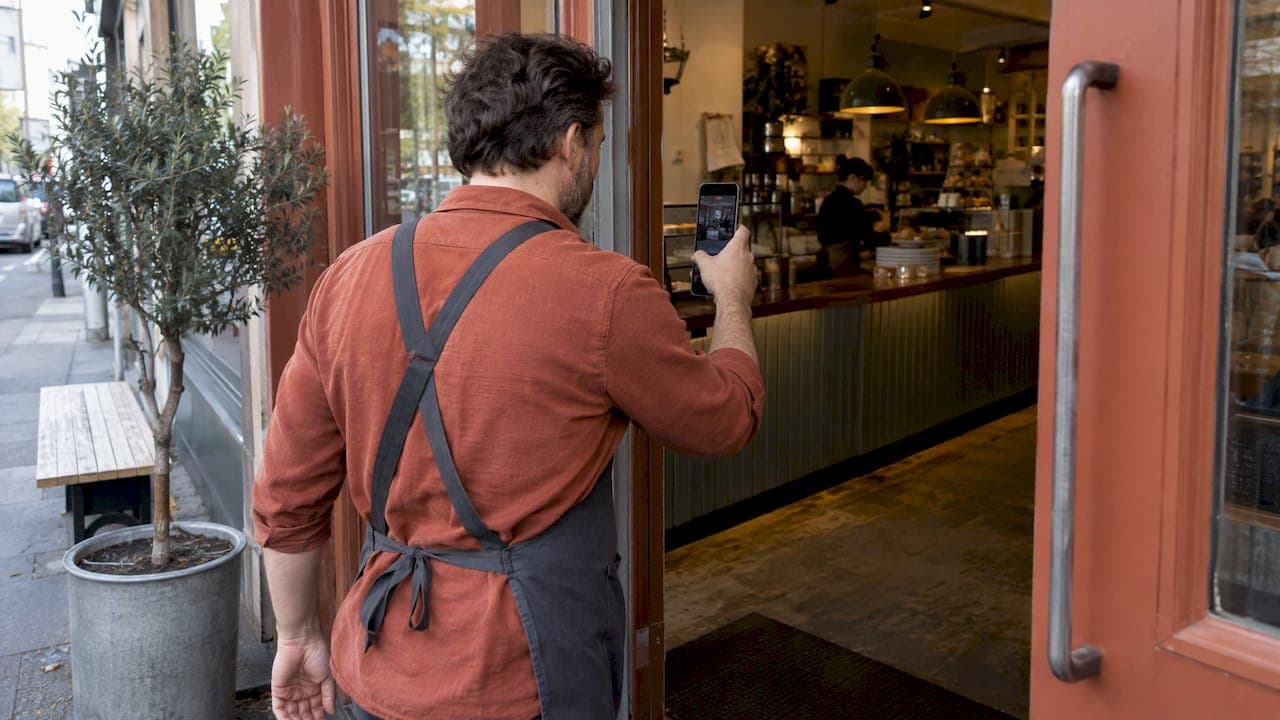
- Film a short walkthrough starting from the street, showing your exterior signage and any visible address markers.
- Move inside and show proof of management, such as unlocking the cash register, using your POS system, or walking through the kitchen.
- Keep a business license or a recent utility bill ready in case Google requests supporting documents during review.
- Use the exact same business name and address on your website, menus, and profile. Mismatches are one of the most common reasons verification gets flagged.
Google's video verification guidance specifically asks hybrid and shopfront businesses to demonstrate both location and management in the same recording. Review typically takes up to 5 business days, and if you're rejected, the usual fix is resubmitting with clearer signage shots or a longer look at staff using POS equipment inside the restaurant.
Pro Tip: *Film the verification video in one continuous take from the sidewalk to the counter. Cut footage reads as staged and tends to draw extra scrutiny.*
Optimize your profile for local search ranking
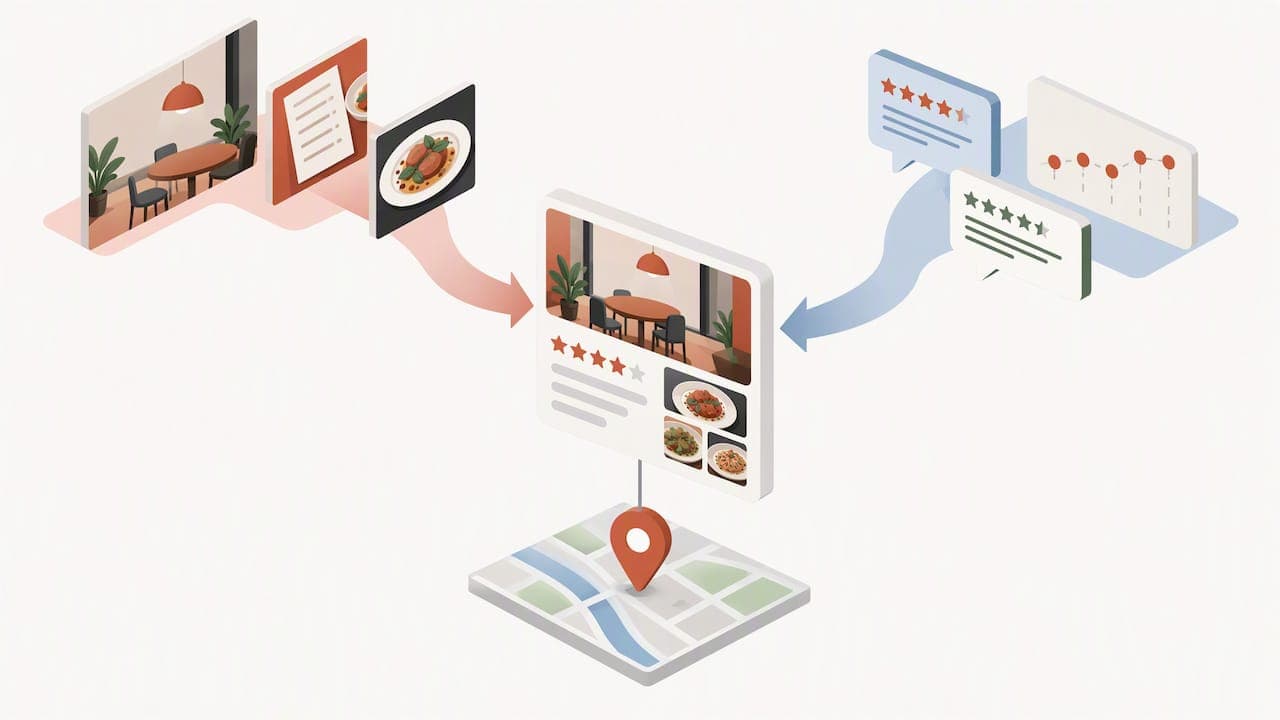
Google ranks local results on three factors: relevance, distance, and prominence. Each one responds to a different part of your profile, so it helps to know which fields move which lever.
- Relevance improves when your category and attributes match what searchers type, so pick the most specific category and add attributes like dine-in, outdoor seating, or delivery.
- Distance depends on your verified address matching where the searcher is standing or searching from, which is why accuracy matters more than keyword stuffing.
- Prominence comes from reviews, links, and overall profile completeness, so photo volume and review responses carry real weight here.
Local ranking guidance from Google confirms that relevance, distance, and prominence are the three pillars, and a complete, accurate profile improves your odds in all three.
A complete profile with regular photo uploads and review responses tends to outperform a bare-bones listing in local search, according to Google's own ranking factors.
Build a simple photo rotation: a strong cover shot, a full menu photo, and a few dish close-ups, then ask regular customers to add their own. Respond to reviews within a day or two when possible, and watch both volume and rating trends over time, not just the overall score. For a deeper look at building review volume specifically, see our piece on collecting Google reviews automatically.
Connect ordering and reservations to your Maps listing
Customers increasingly order or book a table without ever leaving the Maps app, so your profile needs working links in both places.
- Add your ordering link under the "Order online" button, pointing to your website's ordering page rather than a generic homepage.
- Enable Reserve with Google if your reservation system supports it, so tables can be booked directly from the listing.
- Decide between a website link (full control over design and upsells), the built-in menu editor (simplest to maintain), or an API-managed menu (best for multi-location chains).
- Keep online ordering hours, delivery fees, and menu items synced across your website and profile so customers never hit a mismatch at checkout.
We cover the Reserve with Google setup process in more detail in this walkthrough, and our notes on aligning your website and menu pages with your profile are worth a look if your menu source needs cleanup.
Monitor performance and fix common problems
Once your profile is live, the Insights dashboard tells you what's actually working. Google's performance tracking surfaces views, searches, menu clicks, bookings, and food orders, accessible through both the Business Profile dashboard and the Maps app.
- Check views and searches weekly to spot sudden drops that might signal a suspended or duplicate listing.
- Watch menu clicks and food orders to see whether your menu source and photos are actually converting browsers into customers.
- If your profile disappears from Maps, check for duplicate listings, an incorrect address, an outdated hours entry, or a lapsed verification first.
- If the issue persists, contact Google support directly and have your verification video, recent photos, and a business document like a license or utility bill ready to attach.
A weekly checklist for busy owners and managers
Assign one staff member to own the profile and run a 10-minute weekly check: confirm hours, reply to new reviews, add two fresh photos, and scan the menu for errors. Watch for sudden spikes or drops in views, and keep one single, consistent record of your business name and address across every system you use.
*— ADMIN*
Getting your profile live faster with RESTOBOT
A verified Google Business Profile only pays off once your menu, ordering, and reservation links actually work the way customers expect. Our platform is designed for rapid deployment, enabling your website and embedded menu to go live quickly, with zero commission on online orders. Reservation integrations and automated review collection run alongside it, which takes the menu-source and prominence work from this guide off your plate. Staff can also set up personal, commission-free tip collection through our tips page, independent of whether the restaurant itself is on RESTOBOT. Compare our LOYALTY, MENU, and FULL plans on our pricing page to see which fits your setup.
FAQ
How to make Google Maps show restaurants?
Your restaurant appears on Maps once you claim or create a Business Profile, complete your address and category, and pass verification. Accurate hours, a filled-out menu, and recent photos all improve how often you show up in nearby searches.
How much does Google Business Profile cost?
Creating and managing a Google Business Profile is free; Google does not charge restaurants to list, verify, or update their listing. Costs only come in if you choose paid advertising or separate tools to manage the profile.
How do I add my restaurant to Google Maps?
Search Maps first to rule out an existing listing, then sign up or claim your profile through Google Business Profile and fill in your name, address, category, and hours. Submit for verification, which can take up to five business days, often using a short video walkthrough of your location.
Why isn't my restaurant on Google Maps?
The most common causes are an unverified or suspended profile, a duplicate listing competing with yours, or a mismatched address between your website and your profile. Checking Google's verification requirements and fixing any name or address inconsistency usually resolves it.