

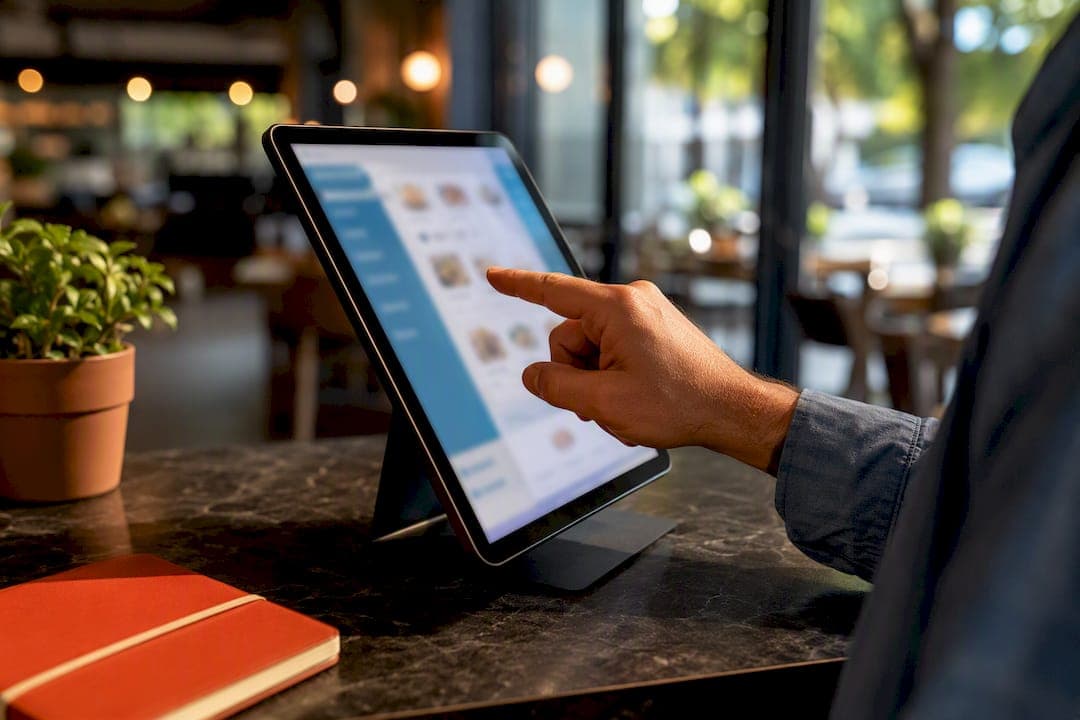
Add or update your menu straight from your Google Business Profile: open Edit menu, add sections and items or link a hosted menu URL, save, then check back in 24 to 48 hours. That's the standard processing window Google's own support documentation gives for menu changes to show up on Search and Maps. If you don't see an editor at all, your listing is probably tied to a partner feed or the Business Profile API instead, which changes the whole process.
***
TL;DR:
>
- Most menu updates on Google Search and Maps appear within 24 to 48 hours after submission, but accounts tied to partner feeds or APIs may update on a different schedule, often daily. - The menu editor is accessible via desktop at business.google.com or on mobile through the Google app or Maps, with location and interface variations depending on the device. - Uploading a high-quality, text-based PDF or photo allows Google to transcribe a digital menu, but manual correction is often necessary due to transcription inaccuracies. - When the native menu editor is missing, the profile is likely managed through a third-party feed or API, requiring direct updates from those sources instead of manual edits. - An embedded hosted menu website, updated once and linked in the profile, offers a reliable alternative to manual entry and mitigates issues with transcription errors or delayed updates.
***
Table of Contents
- Quick Checklist To Add A Menu To Google
- Where To Find The Menu Editor On Desktop And Mobile
- Uploading A Photo Or PDF Menu
- When The Native Menu Editor Is Disabled
- Timing And Troubleshooting When Changes Don't Show
- Menu Content Best Practices That Reduce Errors
- Why A Hosted Menu Beats Relying On Manual Edits Alone
- Skip The Manual Uploads With A Hosted Menu
- Official Help And Developer Resources
- Sources
- FAQ
Quick Checklist To Add A Menu To Google
Before diving into the details, here's the fast version. Most restaurant owners can knock this out in under ten minutes if they already have their menu items written down somewhere.
- Sign in to the Google account that actually manages your Business Profile, not a personal account you rarely check.
- Open your profile by searching your business name on Google, tapping the pin in Google Maps, or logging in directly at business.google.com.
- Find Edit menu (sometimes shown as "Menu" or "Add menu link" depending on your account type) and click into it.
- Build it out: add sections, then add items with a name, price, and short description, or skip that and upload a photo or PDF instead. Save when you're done.
- Wait 24 to 48 hours, then search your business name to confirm the new menu is live.
- Double check on mobile Maps, too. Desktop and mobile occasionally sync at slightly different speeds.
That's the whole loop for most independent restaurants. The next sections cover exactly where these buttons live, what to do when Google can't read your PDF correctly, and what to do if the editor doesn't appear at all.
Where To Find The Menu Editor On Desktop And Mobile
The menu editor lives in three places, and Google doesn't always put it in the same spot depending on how you access your profile.
On desktop, go to business.google.com, select your location if you manage more than one, then look in the left sidebar for a "Menu" tab. If your profile was set up through a food-ordering partner, you might instead see "Menu URL" as the only option, which just lets you paste a link rather than build sections manually.
On mobile, search your business name in the Google app or Google Maps, tap your Business Profile card, then look for "Edit profile" followed by "Menu." The layout shifts occasionally as Google updates the app, so if you don't see it under one label, check "Business info" as a second stop.
Once you're in, building the menu itself works the same way everywhere:
- Tap Add menu section to create a category like Appetizers, Mains, or Desserts.
- Inside each section, tap Add menu item. Name is required; description and price are optional but strongly recommended.
- Edit or delete any item or entire section later using the same menu.
- Drag items to reorder them within a section if the order matters for how customers scan the list.
Keep section names simple and consistent. "Appetizers," "Mains," and "Desserts" read cleaner in search results than creative names like "Starters & Small Plates" or "Chef's Beginnings." Use sentence case for item names ("Grilled salmon," not "GRILLED SALMON") since Google tends to display all-caps entries oddly on mobile.
Pro Tip: *If a third-party delivery app already lists your menu, don't just copy its formatting. Those listings often bundle modifiers and add-ons in ways that look messy once pasted into Google's cleaner section-and-item structure.*
Uploading A Photo Or PDF Menu
If typing out every item feels like too much, Business Profile lets you upload a photo or PDF instead. Look for Photos of menu in the same menu editor section. Google can transcribe text from an uploaded image or PDF into an actual digital menu tab, which means customers get searchable items instead of just a static image.
The catch: automated transcription isn't perfect. Stylized fonts, multi-column layouts, and low-resolution photos routinely trip it up, producing garbled item names or missing prices.
- Upload a clear, high-resolution photo or a text-based PDF, not a scanned image of a scanned image.
- Check the generated menu tab a day or two after upload and compare it line by line against your actual menu.
- Fix any misread names, prices, or descriptions manually inside the editor.
- If your menu uses decorative fonts or a complex multi-column layout, skip the upload and enter items manually instead. It takes longer upfront but avoids a wave of small errors customers will notice before you do.
When The Native Menu Editor Is Disabled
Some business owners open their profile looking for Edit menu and find nothing there. That usually isn't a bug. Google notes that accounts connected to the Business Profile API or a partner menu feed don't get manual editor access, because the menu data is already being supplied through a structured feed elsewhere.
Here's what that actually means in practice:
- Partner-managed feeds typically push a daily full refresh rather than instant updates, so a price change made with your ordering partner today might not reflect on Google until tomorrow.
- The underlying structure always follows the same hierarchy: menu, then sections, then individual items, each with its own ID in the feed.
- If a partner or aggregator manages your listing, contact them directly to update prices or items. Editing your own profile won't do anything.
- If you're technical and manage your own feed through the API, updates need to go through your developer, not the consumer-facing editor.
If you're stuck relying on someone else's refresh schedule and it's slowing you down, switching to a hosted menu URL you control directly using a reliable Cafe Menu Generator for Long-Term Care is often the simpler fix, especially for small operations without a dedicated tech team.
Timing And Troubleshooting When Changes Don't Show
Give it the full 24 to 48 hours before assuming something's broken. Some surfaces, particularly mobile Maps caches, can lag slightly behind desktop Search.
If it's been longer than 48 hours, run through this:
- Open your listing in an incognito or private window to rule out a cached version showing you old data.
- Check Google Maps on mobile separately from desktop Search.
- Confirm you actually have manager or owner permissions on the profile, not just viewer access.
- Verify a third-party aggregator or partner doesn't own the feed, which would explain why your manual edit never took effect.
- Try re-saving the same edit, sometimes it simply didn't register the first time.
If prices are showing incorrectly across multiple surfaces after several attempts, or the mismatch keeps recurring, that's when it's worth contacting Google Business Profile Help or the Help Community directly rather than continuing to troubleshoot solo.
Menu Content Best Practices That Reduce Errors
A technically correct upload still fails customers if the content itself is confusing or incomplete. A few habits make a real difference:
- Keep item names short and specific. "Grilled Salmon with Lemon Butter" beats a vague "Salmon Special."
- Write descriptions in the 10 to 20 word range for signature dishes. Long enough to sell it, short enough that people actually read it.
- List prices as text, not buried inside an image, since image-only pricing can't be read, searched, or transcribed reliably.
- Add one or two high-quality photos for standout dishes rather than photographing the entire menu page by page.
- Avoid listing the same item in two sections. It confuses both customers and Google's indexing of your menu.
- If any part of your menu only exists as an image, make sure a text version exists somewhere too, for customers using screen readers or slower connections.
Pro Tip: *Compress your menu photos before uploading. A 12MB phone photo loads slowly on mobile data, and a customer standing outside deciding whether to walk in isn't going to wait for it.*
Why A Hosted Menu Beats Relying On Manual Edits Alone
RESTOBOT builds a live website with an embedded menu the moment a restaurant's application gets confirmed, no separate setup, no waiting days. That website becomes the one place your menu actually lives, and you link it into your Business Profile instead of retyping every item by hand or hoping an automated PDF transcription got the prices right.
The operational upside is real: one source of truth means no mismatch between what's on your ordering system, your website, and what Google displays. Combine that with commission-free ordering and a tips feature for staff, and updating a menu stops being a recurring chore split across multiple logins.
*— ADMIN*
Skip The Manual Uploads With A Hosted Menu
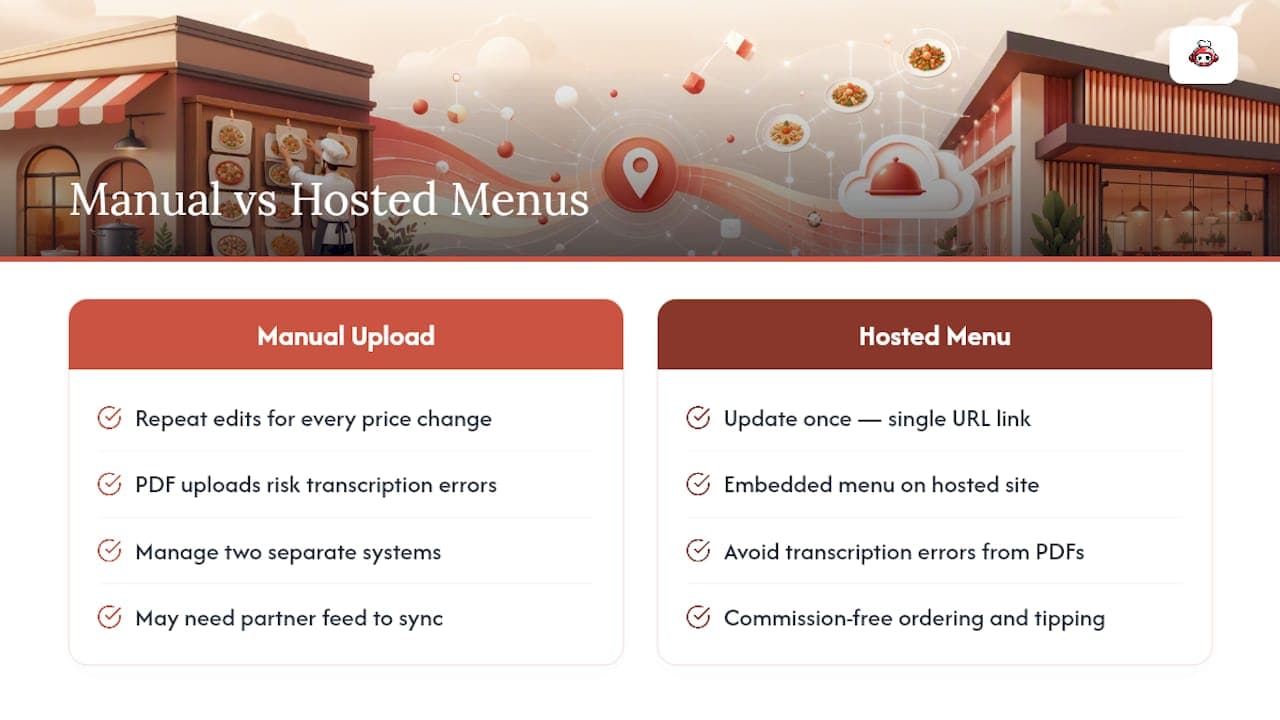
Manually rebuilding your menu inside Google's editor works, but every price change means logging back in and repeating the process, and every PDF upload risks a transcription error you won't catch until a customer complains. RESTOBOT gives you a different option: an instantly hosted website with your menu embedded, so you update it once and link that single URL from your Business Profile instead of managing two separate systems.
That setup also opens the door to commission-free ordering and staff tipping through the same platform, without needing a developer or a partner feed to keep things in sync. If you're tired of double-checking whether Google's version matches your actual menu, take a look at the MENU plan, priced at €99 per month, and see whether hosting your own menu page solves the problem for good.
Official Help And Developer Resources
For step-by-step editor instructions, start with Google's Business Profile menu editor help page. If you manage menu data through a feed or the API, the developer documentation on menu feeds covers structure and refresh cadence. For broader restaurant presence features, see Google's Restaurant Solutions page.
Sources
FAQ
Where Is The Menu Icon On Google Business Profile?
It's under "Menu" or "Edit menu" in your Business Profile dashboard at business.google.com, or under "Edit profile" when accessing your listing through the Google app or Maps on mobile. If you only see a "Menu URL" field instead of a full editor, your account is likely tied to a partner feed rather than manual entry.
How Long Does It Take For A New Menu To Show Up On Google?
Most menu changes appear within 24 to 48 hours after saving. If it's been longer and nothing's changed, check whether your listing is managed through a partner feed, since those often update on a daily refresh cycle instead of instantly.
Can I Just Link My Website's Menu Instead Of Typing It Into Google?
Yes. Adding a menu URL is a valid alternative to manually entering every section and item inside the editor, and it keeps one canonical version instead of maintaining two. A platform like RESTOBOT that builds an embedded website menu makes this approach especially simple since the link stays current automatically whenever you edit your site.
Why Doesn't The Edit Menu Option Appear On My Profile?
This usually means your Business Profile is connected to the Business Profile API or a third-party partner feed, which replaces manual editing with structured data uploads. Confirm you have manager or owner permissions first, since limited access can also hide the editor even on profiles without a feed connection.
Does Google Automatically Read My Uploaded Menu PDF?
Google can attempt to transcribe text from an uploaded photo or PDF into a digital menu tab, but the process isn't always accurate with stylized fonts or complex layouts. Always review the generated items against your actual menu and correct any misread names or prices before considering the upload finished.