


You can export data from most online ordering systems as a CSV or Excel file, filtered by date and order status. The better ones also send it automatically to other tools. What separates a useful export from a frustrating one is the detail: which fields are included, how multi-item orders are laid out, whether the totals reconcile with your payment records, and who can download the file. This guide covers all of that, so you can test any system (including ours) before your restaurant depends on it.
TL;DR
- Look for filters by date range and order status, choice of columns, and at least CSV or Excel output. JSON or XML helps if you plan to connect other software.
- Expect multi-item orders to span several rows. Know which columns repeat and which are left blank before you build a spreadsheet on top.
- A file that opens is not proof it is complete. Check row counts and money totals against your payment provider.
- Exports of customer details are personal data. Limit who can download them and where the files end up.
- Marketplaces take 30% of the net order value plus VAT. With direct orders you keep that margin and the customer relationship, and the data is yours to analyse.
Table of Contents
- How to export order data from a restaurant ordering system
- What an export can include
- Which formats are worth having
- Keeping exported data usable
- Automating exports and connecting other tools
- Data handling and security when you export
- What to ask before you choose a system
- Why direct ordering makes your data worth exporting
- Getting started with RESTOBOT
- FAQ
- Sources
How to export order data from a restaurant ordering system
The steps are similar across platforms, whether it is a shop plugin, a marketplace dashboard or a restaurant platform:
- Open the orders area of your admin or dashboard.
- Set the scope. Choose a date range and, if offered, an order status such as completed, cancelled or refunded. WordPress.org's documentation for a popular WooCommerce export plugin highlights filtering exports by status and date range as a core capability.
- Choose fields and column order. The same plugin lets you drag and drop columns in the export form, which saves reformatting later.
- Pick a format (CSV, XLS, and so on) and run the export.
- Download and check it against a known day of trading before you trust it.
Some systems export everything in the current view, others ask you to select orders first. If the only option is "export all", you will spend your time filtering in a spreadsheet. For a restaurant with a few hundred orders a week, that gets old fast.
Start with a small test
Before exporting a year of history, export one busy day. Count the orders in the dashboard, count the rows (allowing for multi-item orders, covered below), and add up the totals. If one Friday does not reconcile, a full export will not either.
What an export can include
The field list varies enormously by system. At the generous end, Storeep's help centre lists customer fields such as birthday, gender, device, browser, IP address and connection country among those available for export. A restaurant does not need all of that, but the range shows what a flexible system can offer.
For a restaurant, the fields that earn their keep are usually:
| Field group | Examples | Why it matters |
|---|---|---|
| Order basics | Order number, date and time, status, channel (website, Telegram bot) | Spot peak hours and which channel brings repeat orders |
| Items | Dish name, quantity, modifiers, price per line | Menu engineering and food cost analysis |
| Money | Subtotal, discounts, delivery fee, payment method, total | Reconciling with your payment provider |
| Fulfilment | Delivery or collection, courier, address area, requested time | Delivery performance and zone planning |
| Customer | Name, email, phone, order count, marketing consent | Loyalty campaigns and repeat-order analysis |
The consent column deserves attention. If you plan to email or message customers from an export, you need to know who agreed to hear from you. Ask whether the system records it and whether it appears in the file.
Which formats are worth having
CSV and Excel cover most day-to-day needs: accountants, managers and anyone with a spreadsheet can use them. For connecting other software, richer formats matter. AlgolPlus documents that its WooCommerce export tool supports CSV, XLS, XML, JSON, TSV, HTML and PDF, and notes that JSON and XML are particularly valuable for feeding CRM systems and third-party partners.
A practical rule:
- CSV or XLS for people: reports, accountants, ad hoc analysis.
- JSON or XML for software: CRM, kitchen systems, data warehouses.
- PDF for records you want to read but not edit, such as a period summary.
If your restaurant is growing towards a custom set-up, say a reporting layer or a CRM that pulls from several systems, it helps to understand how ecommerce and CRM integration is typically built around structured file formats and APIs. That is the point where a one-off export turns into a standing data feed.
Keeping exported data usable
The file opens, the numbers look plausible, and three weeks later the monthly report is wrong. This is the most common failure, and it is usually a structure problem rather than a bug.
Multi-item orders span several rows
An order with a burger, fries and a drink has three lines. Shopify's help centre explains that in its order CSV, additional line items appear on separate rows, with the parent order fields often left blank on those extra rows to show they belong to the same order. Other systems repeat the order totals on every row instead.
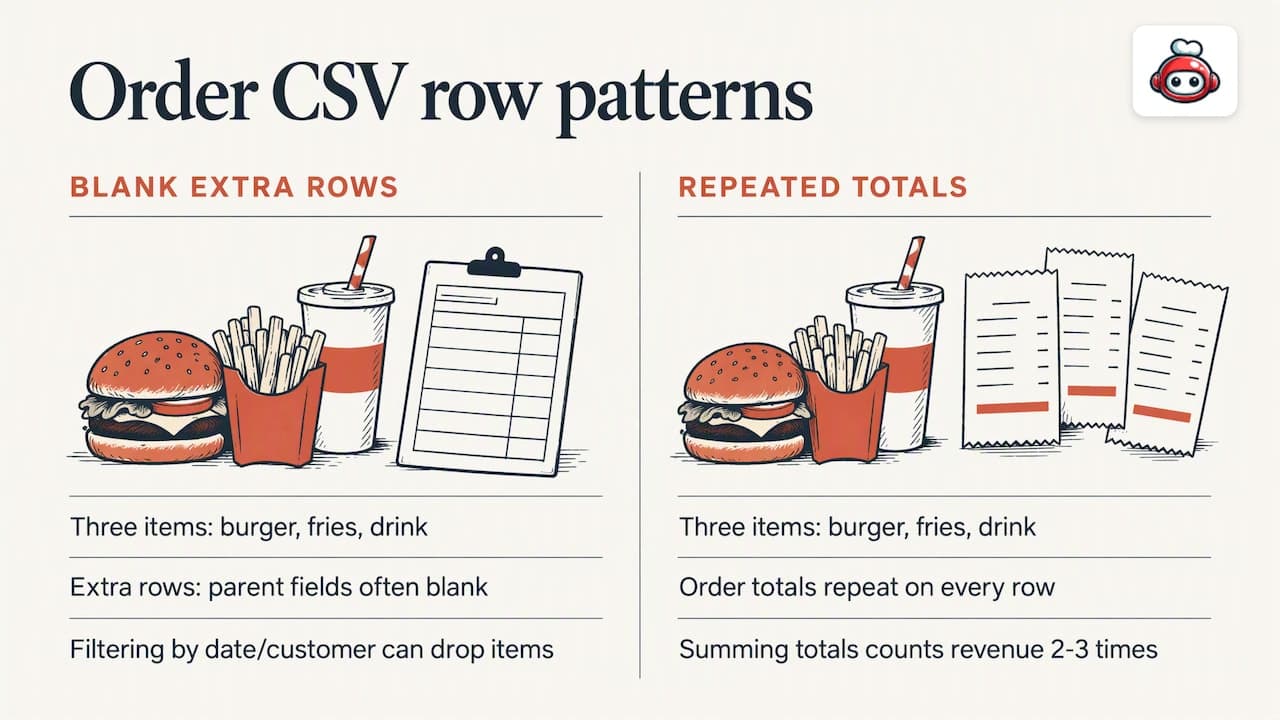
The consequence is practical. If order totals repeat on each line and you sum the column, you will count revenue two or three times. If they are blank on extra rows, filtering by customer or date can drop items. Before building a pivot table, find out which pattern your system uses.
Document what each column means
The POS vendor 86 the POS, in a guide written for operators leaving a point-of-sale system, recommends recording each export's field meanings, types, timezone, units, relationships, history window and omissions, then checking row counts and financial control totals against the source. It also makes the point that a CSV that opens is not necessarily complete or correctly interpreted.
A one-page data dictionary is enough. For each column, write down:
- What it contains (is "total" before or after discount? Does it include VAT?)
- The format (date style, decimal separator, currency)
- The timezone. An order placed at 00:30 may land on the wrong day if timestamps are in UTC and you trade in UK time.
- What is missing, such as cancelled orders, test orders or refunds recorded elsewhere.
Reconcile before you rely on it
Pick a week. Compare the number of orders and the gross total in the export with your payment provider's statement. Differences should be explainable: refunds, failed payments, tips, delivery fees. If you cannot explain them, fix the export settings first.
Automating exports and connecting other tools
Manual downloads work for monthly reviews. For anything daily, automate. WooCommerce's documentation describes exports that can be sent automatically to remote servers via FTP, HTTP POST or email, which is how orders reach fulfilment services without anyone touching a file.
For a restaurant, the equivalent use cases are:
- Accounting: a scheduled daily or weekly sales file to your bookkeeper.
- CRM and loyalty: customer and order history pushed to the tool you use for campaigns.
- Kitchen and delivery: order data passed to courier platforms or POS systems. Our guides on restaurant POS integrations and third-party delivery integration cover how these connections work.
- Reporting: a single place where web, Telegram and phone orders sit side by side. A restaurant order dashboard does this live, so you export only when you need to go deeper.
When you compare systems, ask whether automation is built in, needs a paid add-on, or needs a developer. A scheduled export you can set up yourself beats a more powerful one that needs a project.
Data handling and security when you export
The moment you export customer details, you hold a copy of personal data outside the system's own protections. In the UK, the ICO's guidance says the security principle of UK GDPR requires appropriate technical and organisational measures, and it points to measures such as encryption and pseudonymisation where appropriate, plus the ability to restore access after an incident. Treat that as the standard to work towards, and ask your own adviser what applies to your business.
Practical habits that follow from it:
- Export only what you need. If a report needs dish names and totals, leave out phone numbers and addresses.
- Restrict who can export. Ask whether the system has user roles, so a shift supervisor can see orders without downloading the customer list.
- Keep files out of shared places. Exports sitting in email attachments, shared drives or personal laptops are the usual leak.
- Delete what you no longer need. A file from a finished project is a liability, not an asset.
- Check where an automated export goes. FTP, email and webhooks each have different risks. Prefer encrypted transfer and named recipients.
If you are choosing a platform, ask the vendor directly how it stores order data, who at your restaurant can export it, and what happens to your data if you leave.
What to ask before you choose a system
Use this checklist in a demo or trial:
| Question | What a good answer looks like |
|---|---|
| Can I filter by date and status? | Yes, in the export screen itself |
| Can I choose and reorder columns? | Yes, and the choice can be saved |
| Which formats are offered? | CSV or Excel at minimum, JSON or XML for integrations |
| How are multi-item orders laid out? | Clearly documented, with an order ID on every row |
| Can exports run on a schedule? | Yes, to email or a connected tool |
| Who can export customer data? | Role-based permissions |
| Do I own my data if I leave? | A full export of orders and customers on request |
The last row matters most when you are switching. Our online ordering migration checklist walks through moving orders, menus and customers without losing a service.
Why direct ordering makes your data worth exporting
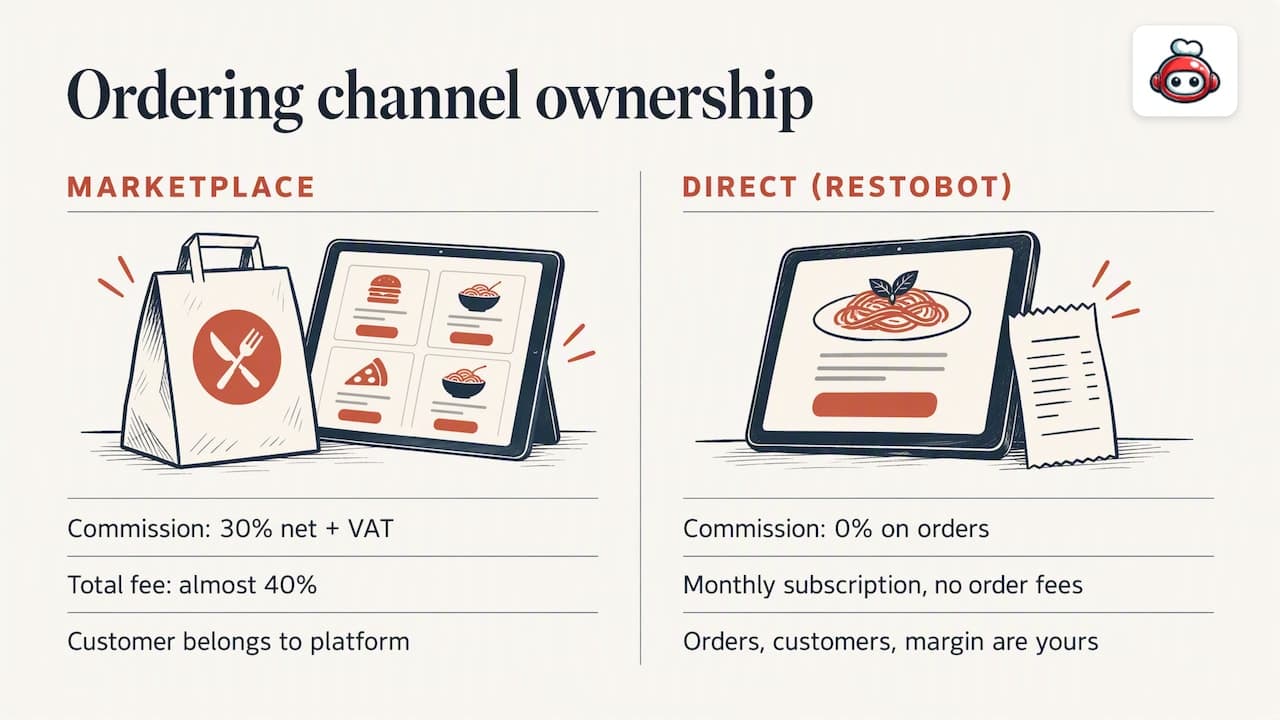
Orders placed through a marketplace sit in someone else's system. You see what they choose to show, and the customer belongs to the platform. They also charge 30% of the net order value plus VAT, which comes to almost 40% in total. On a direct channel, the order, the customer and the margin are yours.
That is where exports pay off. Once orders come through your own website and Telegram bot, you can see which dishes drive repeat visits, which delivery zones are worth serving, and which customers have gone quiet. Our guide to multi-location restaurant ordering shows how that comparison works across venues, and delivery management software covers the courier side.
## Our perspective
>
We built RESTOBOT on a simple belief: a restaurant should own its orders, its customers and the numbers that come from them. That is why we charge a monthly subscription and nothing on orders: 0% commission, against the 30% net plus VAT that marketplaces take.
>
Data you cannot use is not an asset. So when you assess any ordering system, including ours, look past the feature list and test the basics: one real day of orders, reconciled to your payment statement. Our dashboard is designed to give you real-time control of orders and reservations, with analytics on top, so you see what is happening during service rather than a week later in a spreadsheet.
>
The other half is speed. A system that takes months to set up delays the moment your own data starts building. That is why we aim for instant site creation and a one-day launch: the sooner direct orders flow, the sooner you have a record of your own customers to learn from.
>
*the author*
Getting started with RESTOBOT
RESTOBOT brings your website, embedded menu, online ordering through your site and Telegram bot, reservations, delivery coordination, digital loyalty cards and reviews into one platform, with a management dashboard and analytics. The MENU plan starts from €69 per month (€59 per year), and FULL from €119 per month (€99 per year). See the MENU and FULL plans for what each includes. Staff can also collect gratuities from guests through online tips, available on all plans, and a worker can register alone even if the venue is not a customer.
If you want to see how orders are organised before you commit, start from our order dashboard guide and test with your own menu.
FAQ
What is the best format for exporting restaurant orders?
CSV or Excel suits most restaurants, because accountants and managers can open them without special tools. If you plan to feed a CRM or another system, JSON or XML is more reliable for structured data. Choose a system that offers both.
Why do my exported orders have more rows than orders?
Each item in an order usually gets its own row, so a three-item order takes three rows. Some systems leave the parent order fields blank on the extra rows, others repeat them. Check which applies before summing any column.
Can I automate order exports?
Often yes. Some systems send files by email, FTP or HTTP on a schedule, and others connect directly to accounting or CRM tools. Ask whether scheduling is included in your plan or needs a paid add-on.
Is exported customer data safe to share?
It is personal data, so share it as little as possible. Export only the columns you need, limit who can download it, and delete files you no longer use. For the rules that apply to your business, speak to your own data protection adviser.
Do taxes on tips affect what I export?
Taxes on tips are the worker's own responsibility, and we do not give guidance on them.
Sources
- Export Orders for WooCommerce, WordPress.org
- Export orders to an Excel spreadsheet, Storeep Help Center
- Advanced Order Export for WooCommerce overview, AlgolPlus
- Exporting orders, Shopify Help Center
- 12 POS Exports to Test Before You Leave, 86 the POS
- WooCommerce Customer / Order / Coupon Export documentation